Add a test to a section
Insert Multiple Choice, Multiple Response, and Fill In questions into a section, set correct answers, and preview them as a participant would see them.
This article assumes you already have a section open in the editor. See Add content to a section with the editor for how to get there and for the other block types the same add-content menu offers.
A test — Multiple Choice, Multiple Response, or Fill In — is a block inside a section's content, added and edited the same way as any other block.
Insert a test block
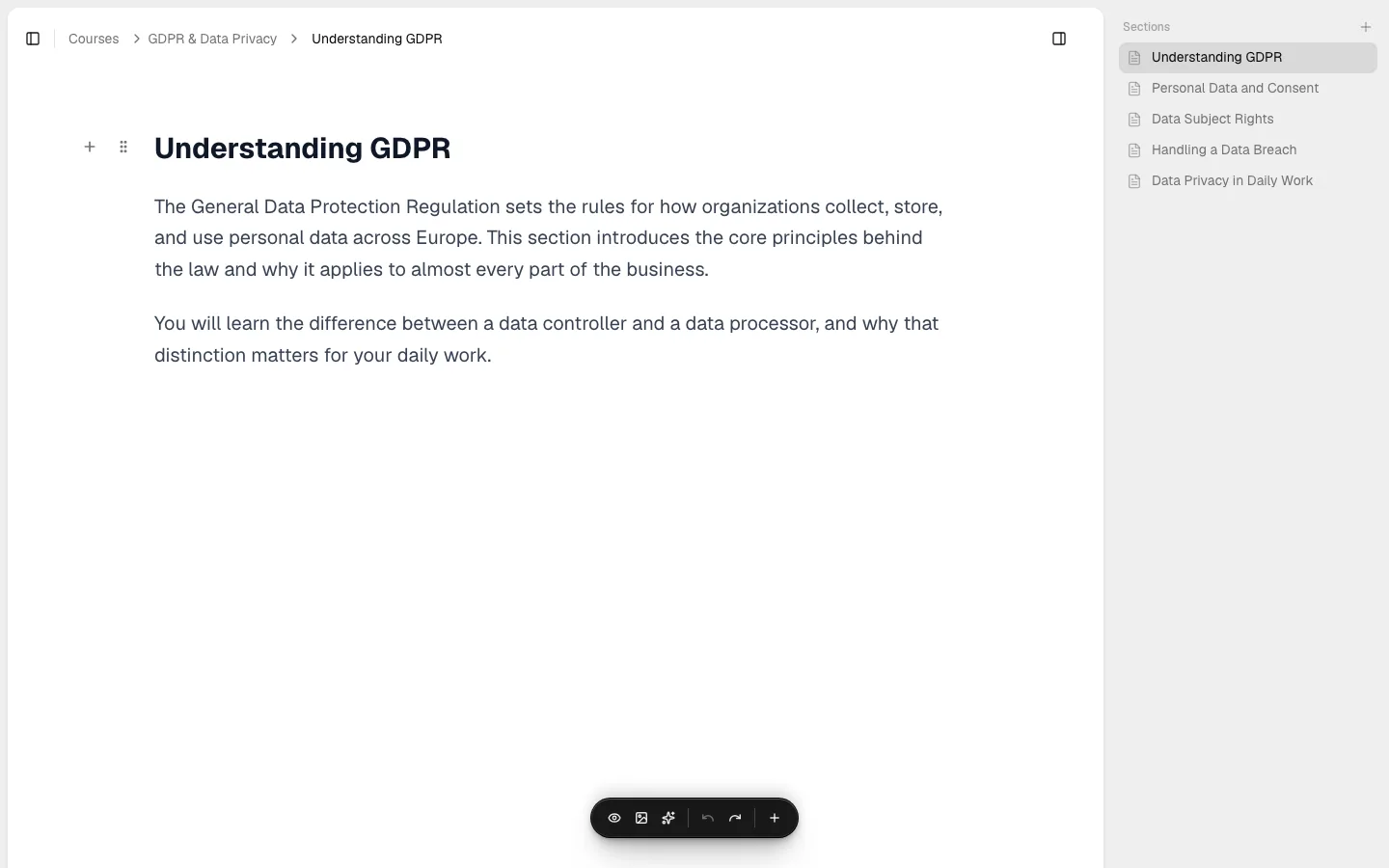
- In the section editor, type
/— or click the + button in the floating toolbar — to open the add-content menu. - Scroll to the Quizzes group.
- Choose Multiple Choice, Multiple Response, or Fill In.
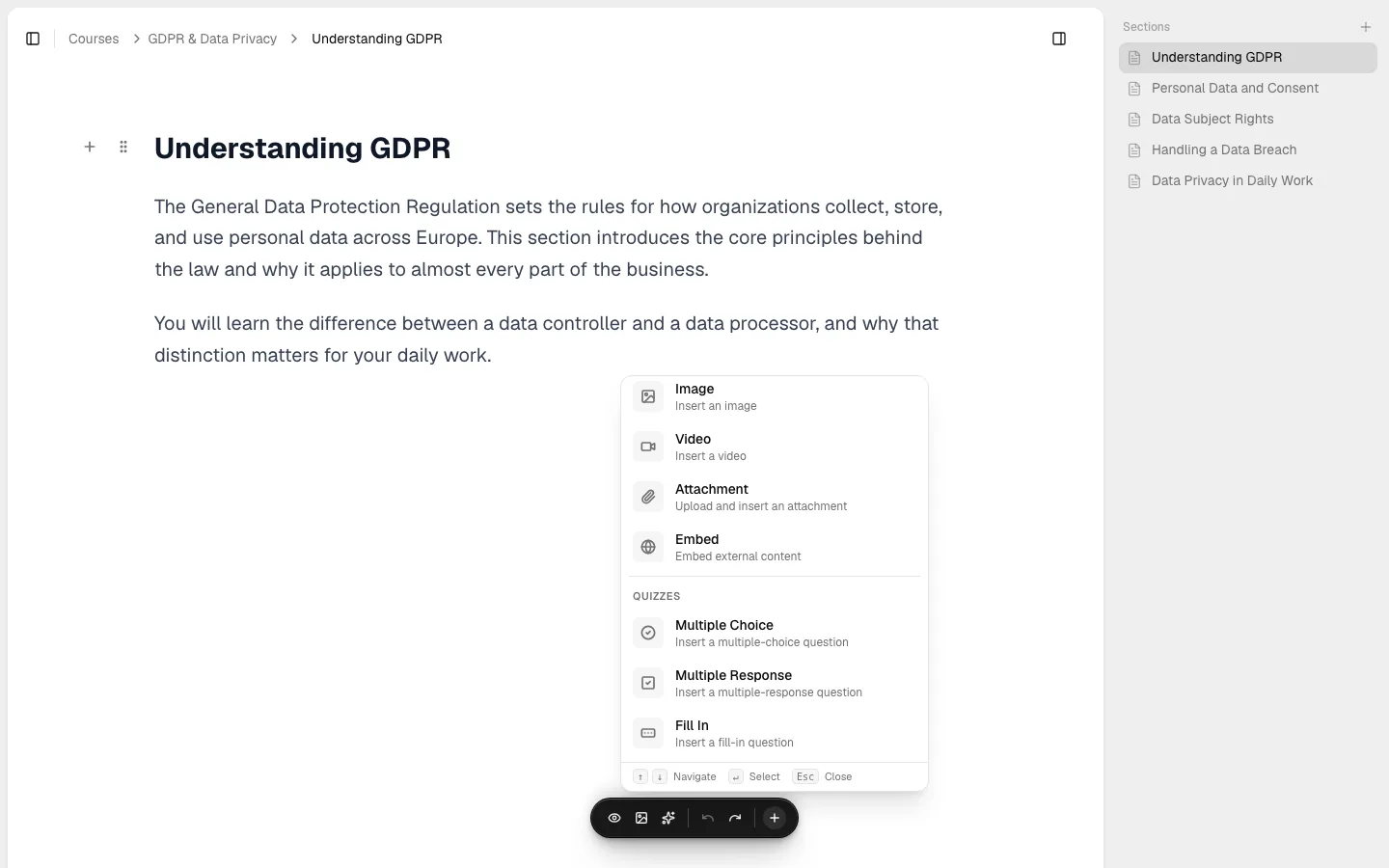
A new block appears in place, ready to edit. Multiple Choice and Multiple Response start with a couple of empty options already there to fill in (see below for exactly how many); Fill In starts with just an empty sentence field — you add words to its bank yourself with Add word.
Configure a Multiple Choice question
A Multiple Choice question has exactly one correct option, selected with a radio-style circle. A newly inserted block starts with one empty option already marked correct.
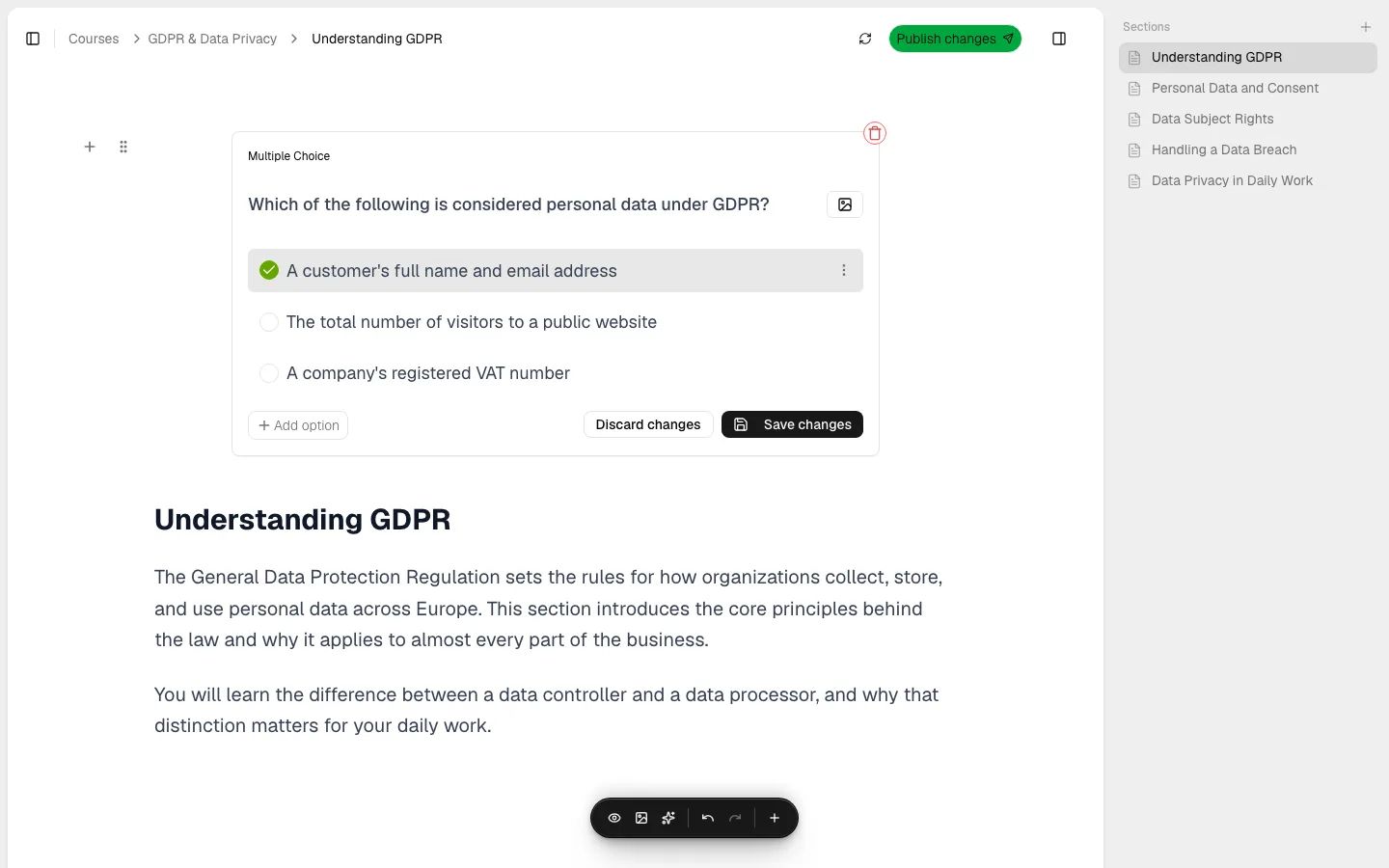
- Type the question in the top field (placeholder Enter your question). An image icon next to it lets you attach an image to the question.
- Type each answer option (placeholder Enter your answer). Click Add option for more.
- Click the circle next to the correct option. Selecting a different option automatically unmarks whichever one was previously correct. The same action is also available from an option's ⋮ menu, as Mark as correct.
- Use ⋮ → Delete option to remove an option.
- Click Save changes, or Discard changes to revert. Clicking outside the block also saves automatically if the question is valid.
Keyboard shortcuts work while a block is focused: Ctrl/Cmd+A adds an option, Ctrl/Cmd+S saves, and Esc discards.
The block won't save until it's valid. Depending on what's missing, you'll see:
- Question should not be empty
- At least 2 options are required
- One option should be marked as correct
Once everything checks out, a green checkmark with a Configured correctly tooltip appears in the corner of the block.
Configure a Multiple Response question
A Multiple Response question works the same way, but options are checkbox-style — any number of them can be correct — and it needs at least 2 options in total. A newly inserted block starts with two empty options: the first marked correct, the second not.
The card is titled Multiple Response, its validation messages match Multiple Choice's, and its participant-facing prompt reads Choose all correct answers rather than Multiple Choice's Choose the correct answer. Each option's ⋮ menu offers Mark as correct, and — once more than one option is already correct — Mark as incorrect, so at least one option always stays correct.
Configure a Fill In question
A Fill In question is a sentence with one or more blanks, and a bank of candidate words a participant drags into those blanks.
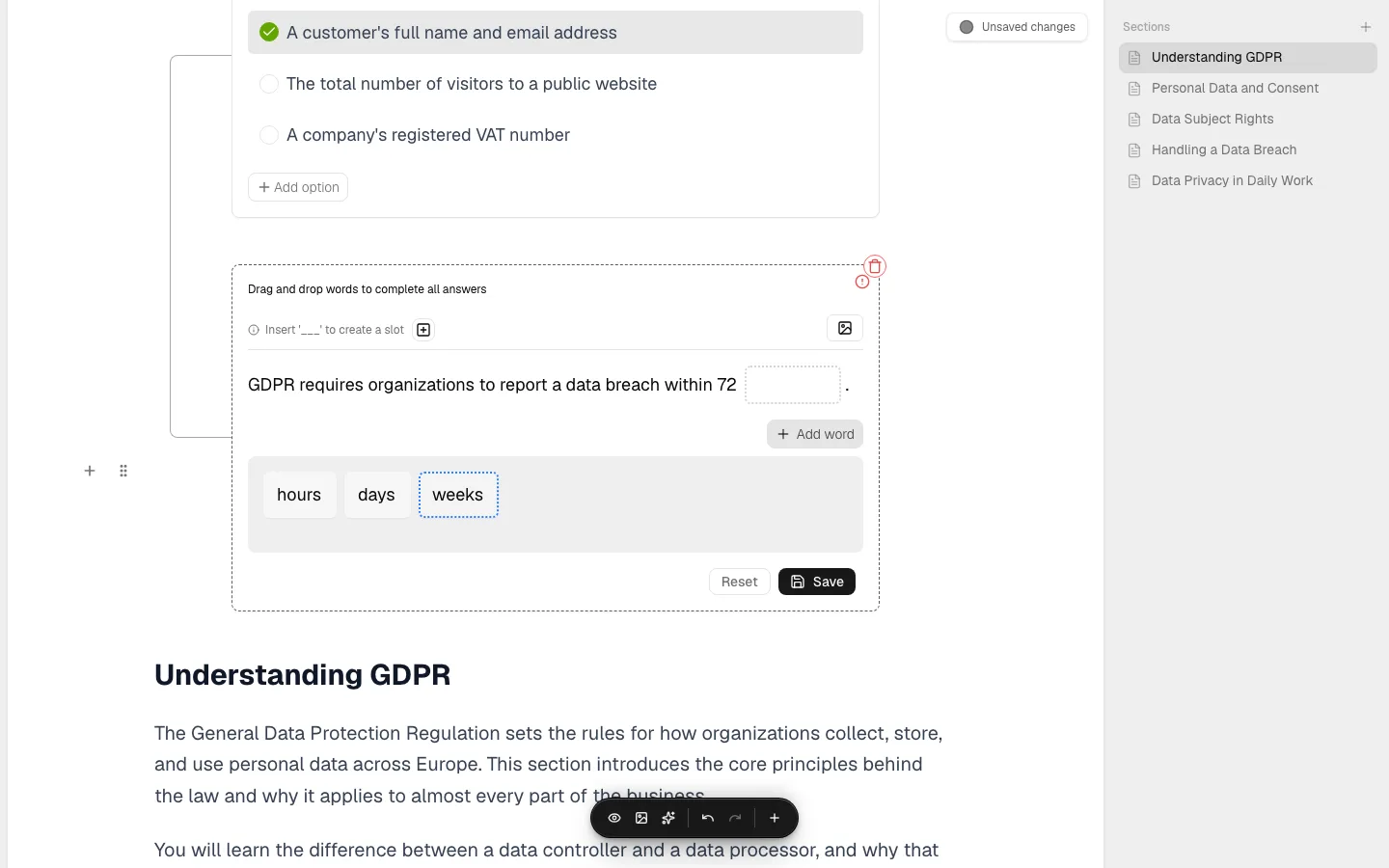
- Type the sentence directly in the text area. Type
___(three underscores) wherever you want a blank, or click the + button next to Insert '___' to create a slot to add one at the end. - Click Add word to add a word to the bank below the sentence, and type its text. Repeat for every word you want available — both the correct answer for each blank and any distractors.
- Drag a word from the bank onto a blank to mark it as that blank's correct answer. A word can be dragged back out of a blank and into the bank again.
- Click Save, or Reset to revert to the last saved version.
A Fill In block needs, in total: at least one blank, at least 3 words in the bank, at least one more word than the number of blanks, and a word assigned to every blank. Depending on what's missing, the editor shows:
- You need to add at least one slot
- You need at least
{{count}}words (one more than the number of slots) - You need at least three words
- All slots must have a correct answer assigned
How a test block is scored
A section's test blocks aren't graded individually — a participant taking them (see Take a test in a section) must answer every test block in the section correctly in the same attempt to pass; there's no partial credit. Participants can retry as many times as they like.
Preview the test as a participant
Click the Preview mode icon (the eye, leftmost in the floating toolbar) to open the section the way a participant sees it.
Since the preview shows the published version of the course by default, and a test block you just added is unpublished until you publish your changes (see Add content to a section with the editor), switch the toggle in the top-right corner from Published view to Draft view to see it:
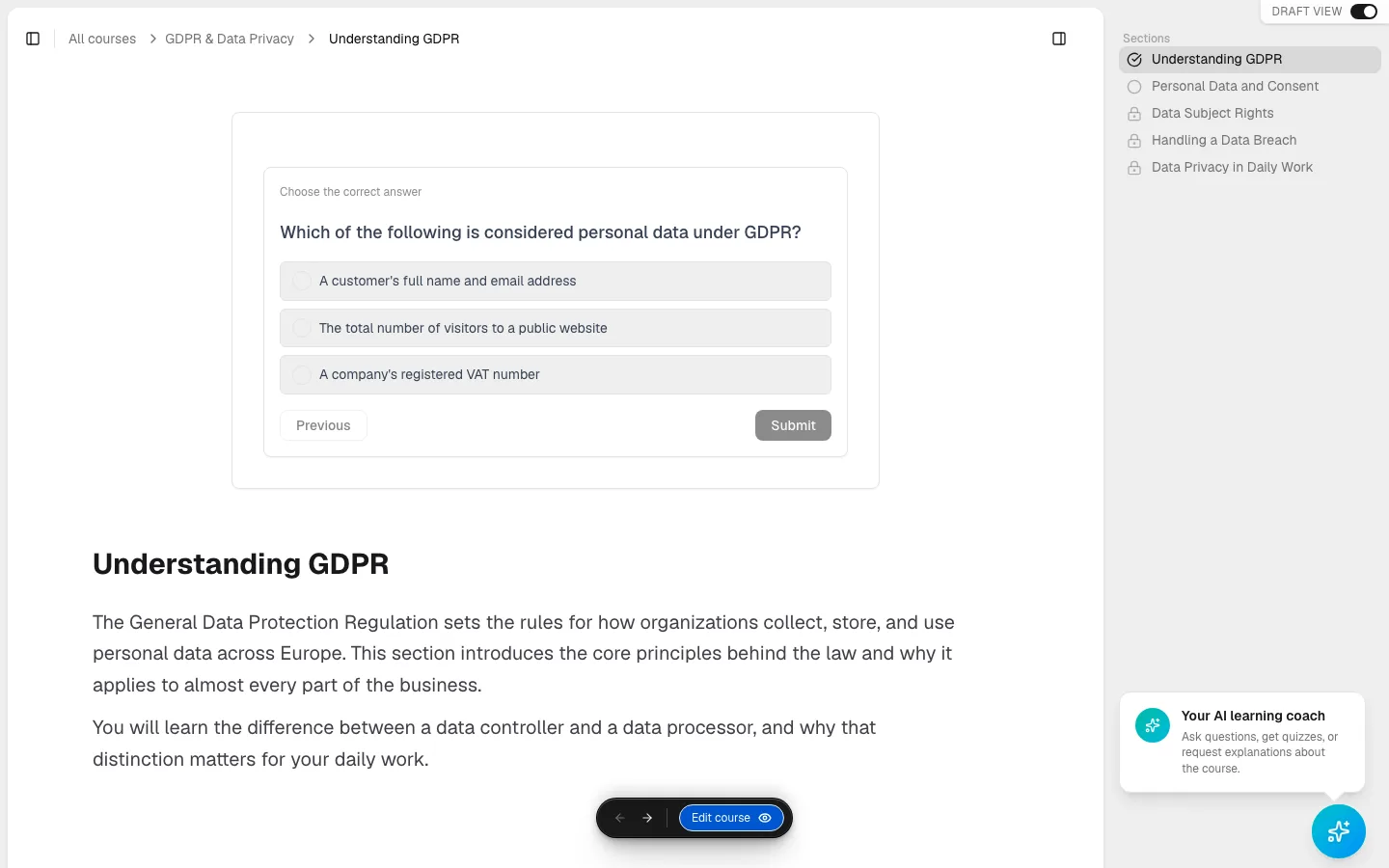
A course member previewing their own course this way is registered as a preview participant behind the scenes, separate from real enrollments.
Next steps
- Add content to a section with the editor for the rest of the block types and how saving and publishing work.
- Set up a course exam — the same three question types, in a different container.
- Take a test in a section for how a participant actually answers these questions.