Find your way around a course
A tour of the course page's layout — the sidebars, the section list, and how to move between lessons.
Once you open a course from your dashboard (see Find and open your assigned courses if you're not there yet), you land on that course's own page. This article is a tour of what's on it and how to get around from there.
The course home page
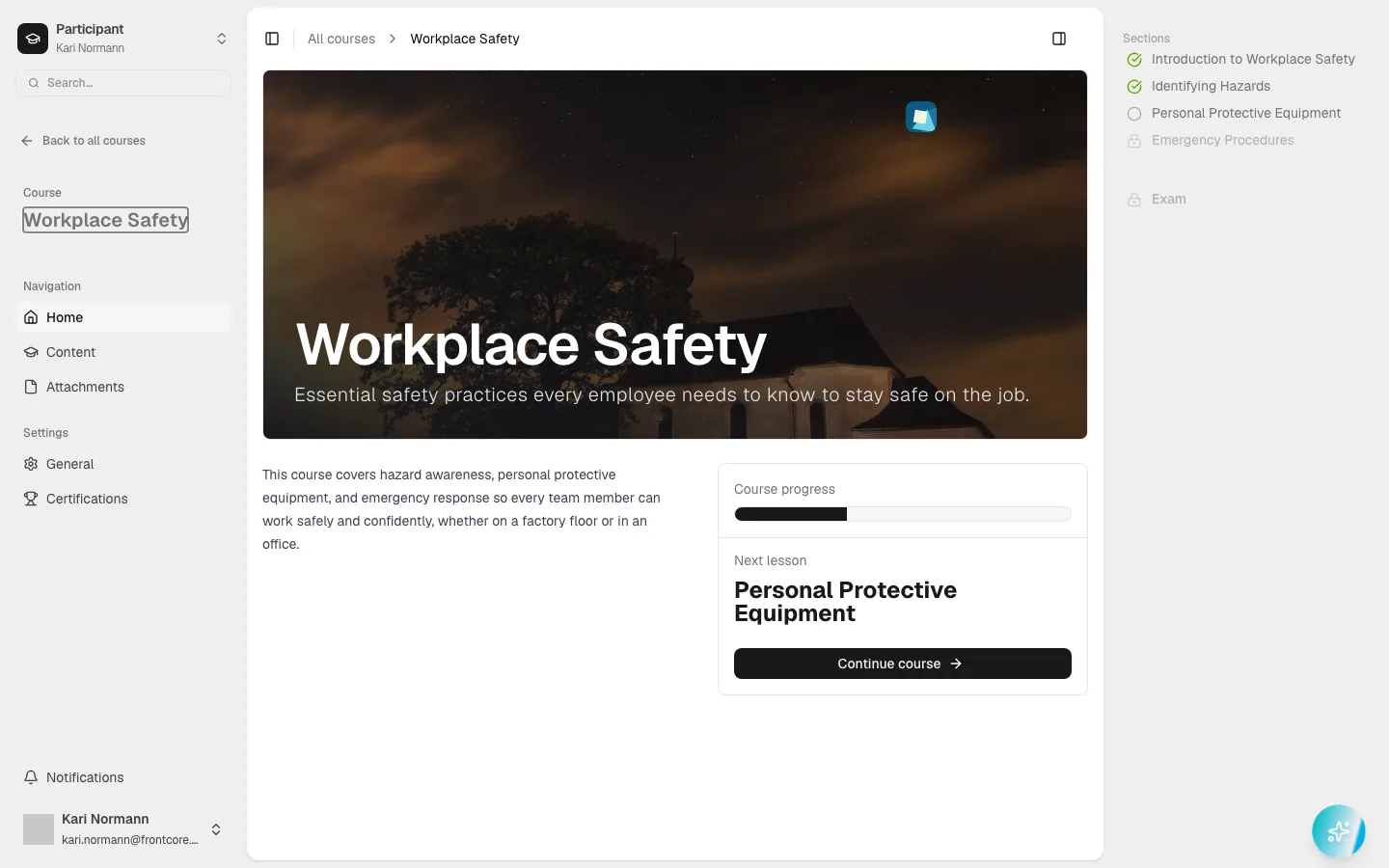
The top of the course page is a banner with the course's cover image, your organization's name, the course title, and its short description. Below that sit the full rich description, any category badges, and a card with:
- Instructors, if any are assigned — select one to see their contact details, with Copy email and Email instructor buttons.
- A Diploma panel, once one has been issued for you on this course (see Download your diploma after completing a course).
- A Course progress bar (covered in full in Track your progress across courses).
- A button naming your next lesson and reading Start course, Continue course, or similar depending on how far you've gotten.
Two sidebars frame every course page
Everywhere inside a course, two sidebars stay with you:
Left — the course menu. A Back to all courses link, the course name under a small Course label, then Navigation (Home, Content, Attachments — the last one only if the course has any) and Settings (General, plus Certifications if the course has recertification turned on).
Content leads to the same home page you're already on — there's no separate content list to open. Use the Sections panel on the right (or the button naming your next lesson) to jump into a specific lesson instead.
Right — the Sections panel. Every section in the course, each marked with a green checkmark (done), an open circle (not done yet), or a lock (not reachable yet — like Exam at the bottom, which stays locked until every section is checked off). Icon meanings and how the progress bar relates to them are covered in Track your progress across courses; what matters here is that each section name is a link — select any unlocked one to jump straight to it, not just the next or previous one.
A breadcrumb trail above the content — All courses, then the course name, then the section name once you're inside one — always shows where you are and lets you click back up a level. Small panel icons at the top corners of the page toggle each sidebar on and off. Hover the left one and it reads Navigation; the right one has no hover label here on the course home page, but picks one up once you're reading a lesson — see below.
Moving through the lessons
Click Continue course (or Start course on a fresh enrollment) to open your next lesson. Once you're reading a section, the left course menu collapses automatically to give the content more room, but the right Sections panel stays open — its toggle icon is labeled Course overview on this screen when you hover it.
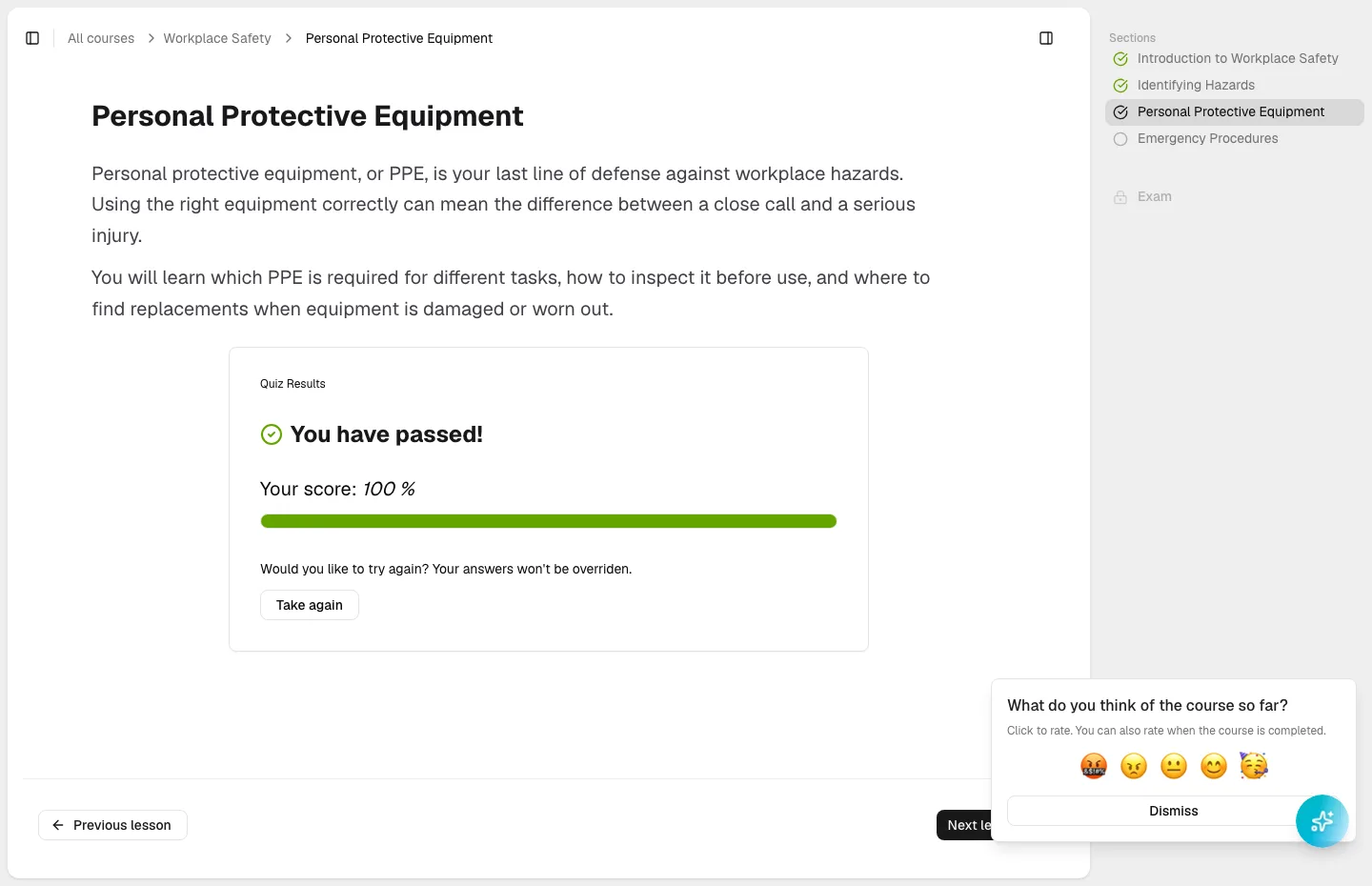
At the bottom of every lesson, Previous lesson and Next lesson buttons step you one section at a time. Some sections include a short quiz you have to complete first — if one isn't finished yet, Next lesson stays disabled with the note All quizzes have not been completed (see Take a quiz embedded in a section). For the reading experience itself — what content and quizzes look like, and what Complete lesson does — see Read a section and move to the next lesson.
Prefer to jump around instead of stepping one at a time? Select any already-unlocked section directly in the right Sections panel — for example, to revisit something you've already finished:
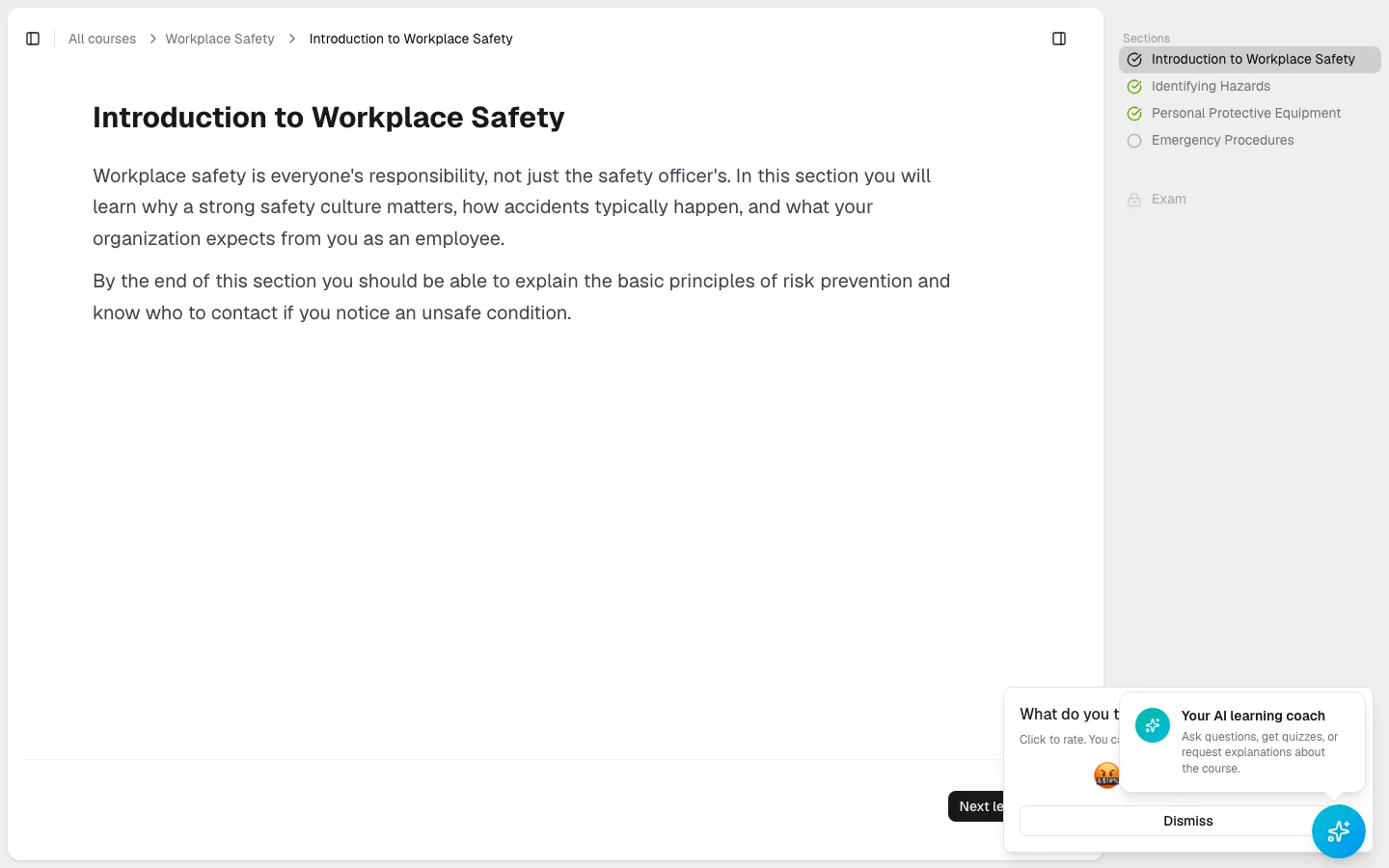
Sections usually unlock in order — a section stays locked until you reach it, unless your organization has turned on open progression for this course. A section you've already completed is never locked, so you can always reopen it from the panel.
Next steps
- Read a section and move to the next lesson for what's actually inside a lesson.
- Take a quiz embedded in a section and Take your course exam for the two ways a course checks your understanding.
- View and download course attachments for what's behind the Attachments nav item.
- Track your progress across courses for what the progress bar and section icons mean in detail.
- If your course has a Certifications item in the left sidebar, see Renew your certification when it's about to expire.
- See the Learner FAQ for more common questions.
Frequently asked questions
Complete a course and share your feedback
What happens when you finish a course's last section (and exam, if it has one), and how to rate the course and leave feedback afterward.
Find and open your assigned courses
See every course you're enrolled in or invited to, search your list, and open one to start learning.