Find and open your assigned courses
See every course you're enrolled in or invited to, search your list, and open one to start learning.
FrontCore only shows you courses you're actually enrolled in, or have a pending invitation to — this page isn't a public catalog you browse. This article covers where your courses show up and how to open one.
If a course you expect to see is missing, you haven't been enrolled or invited to it yet. Ask your course admin to add you — FrontCore won't list a course here just because your organization offers it.
Your dashboard shows your enrolled courses
When you sign in, your dashboard's Enrolled Courses card lists every course you're enrolled in, each with its short description, a progress bar (or a Completed badge once you finish it), and a Go to Course button.
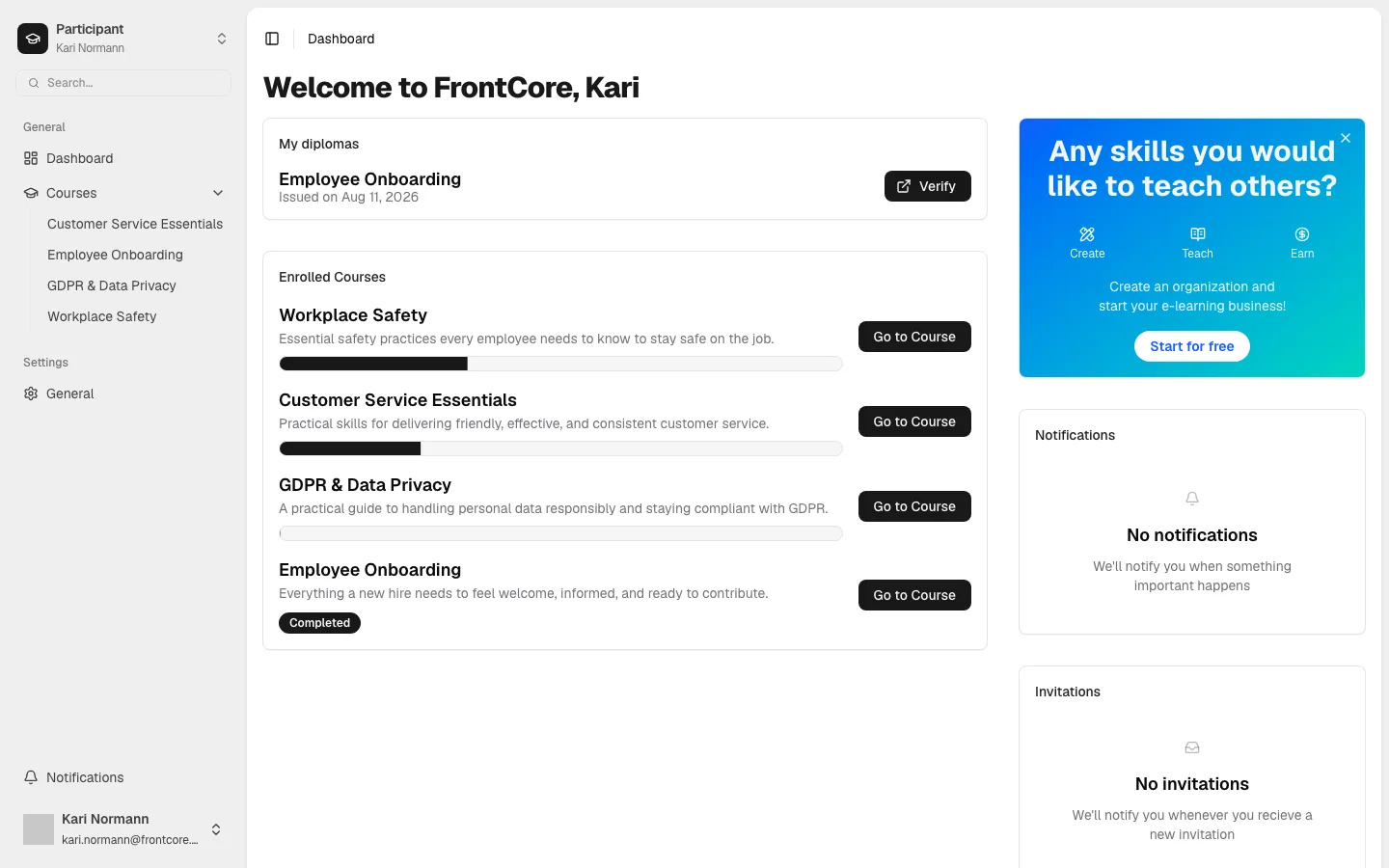
Click Go to Course on any row to open that course. If you have no enrollments yet, the card shows No courses available instead.
See your full course list
For the complete list — including courses that don't fit on the dashboard card — open Courses in the left sidebar. This takes you to the All courses page.
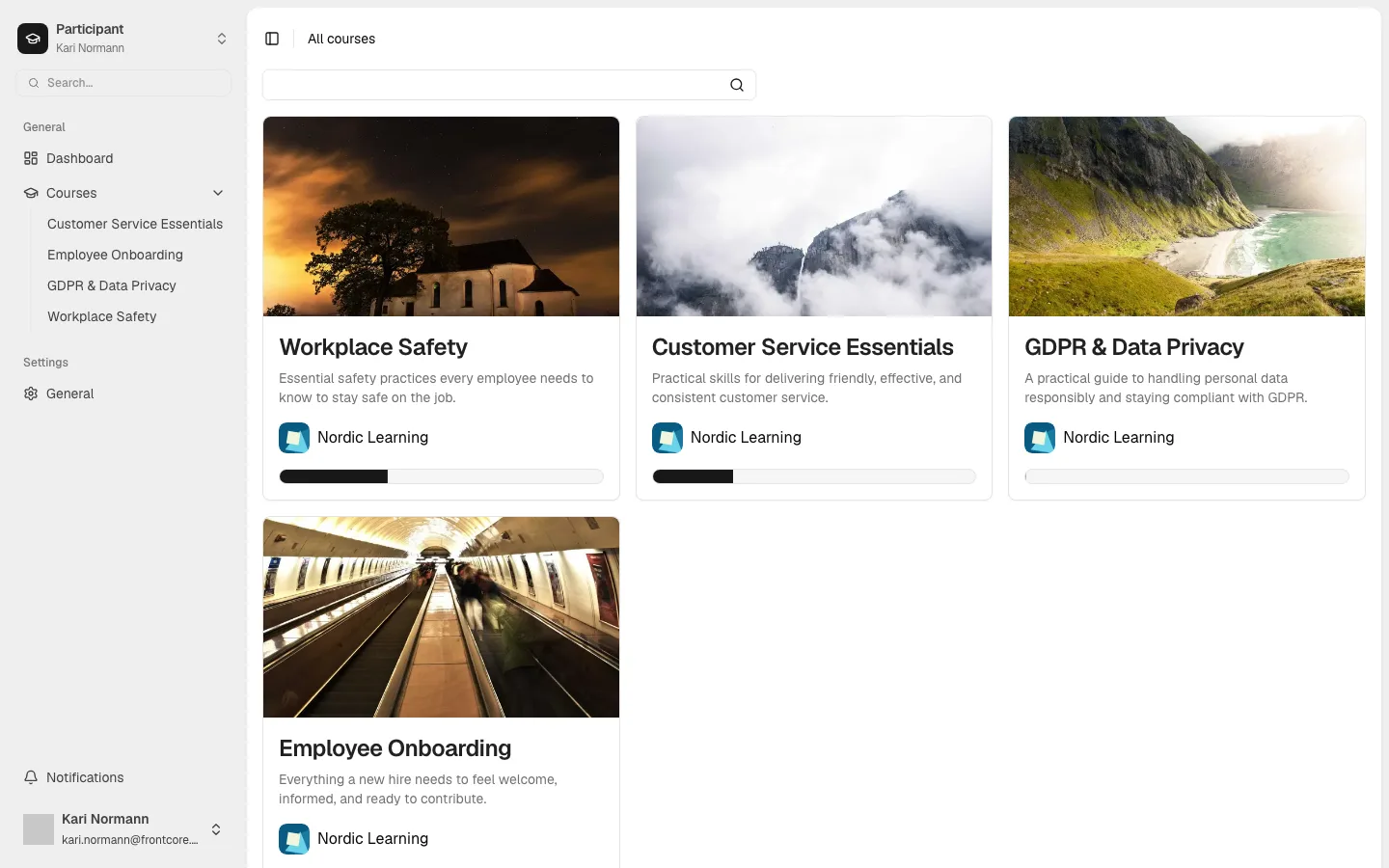
Every card here is a course you're enrolled in or invited to — same rule as the dashboard. If you have none yet, the page shows No courses available / Courses you are enrolled in and invitations will appear here.
Some cards carry extra badges when they apply: an Access expired or Access expires soon badge if your access to that course has a deadline, and a Time limited course badge if the course itself has a time limit once you start it.
The Courses item in the sidebar also expands (click the chevron next to it) into a shortcut list of your individual courses — and any pending invitations, with their own inline Accept/Decline controls — so you can jump straight to one without opening the full page first.
Search your courses
Use the search box at the top of the All courses page to filter your enrolled courses by name. Type part of a course's name — the list updates as you type. (A pending invitation card, if you have one, matches more broadly — its course name, description, organization, or category — since it isn't in your enrolled-course list yet.)
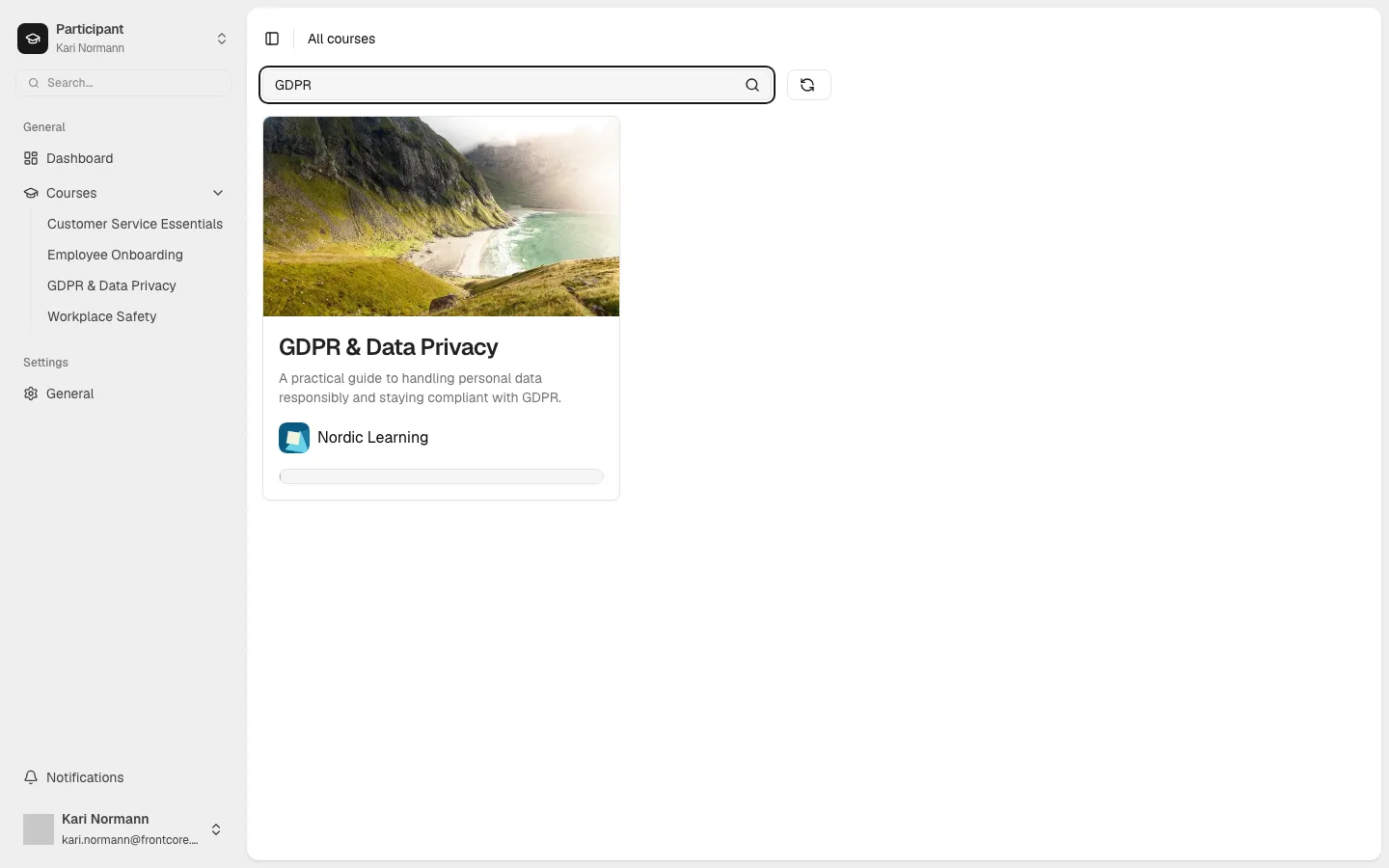
A reset button appears next to the search box whenever your filters differ from the default, so you can clear back to the full list in one click.
If you have more courses than fit on one page
The All courses page paginates once your enrollments and invitations together exceed the page size (12 by default) — you'll see page controls and a page-size selector (12 / 24 / 48) at the bottom of the list.
Open a course
Click a course's card (its image or its title) to open it. That takes you to the course's own page, with a Back to all courses link and a breadcrumb back to All courses so you can return to your list.
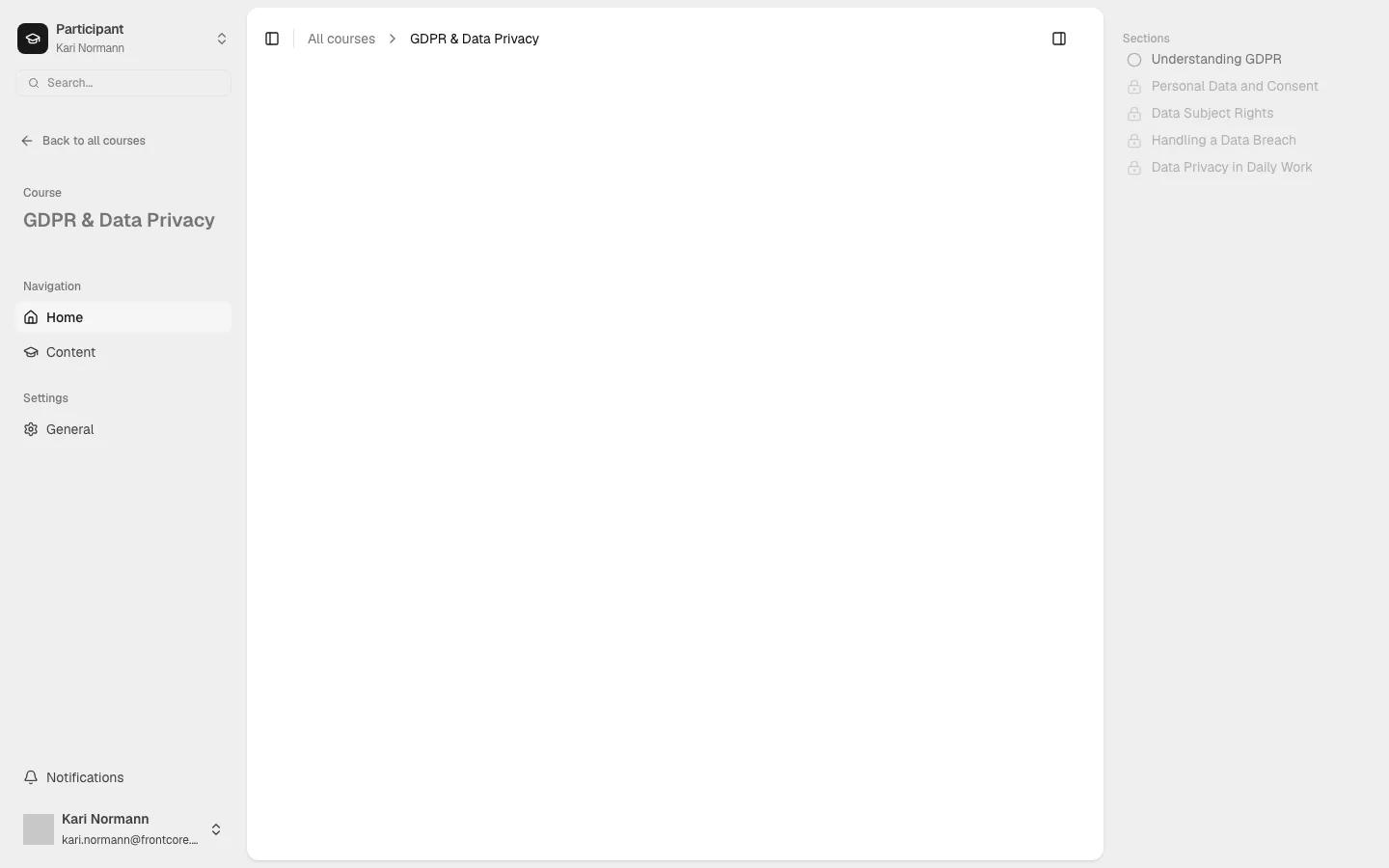
Depending on where you left off, the course page's button reads Start course (courses you haven't opened yet), Continue course, or Go to course for one you've already completed. What you'll find once you're inside — sections, navigation, and how progress is tracked — is covered in a separate article.
Accept or decline a course invitation
If someone invites you to a course instead of enrolling you directly, it shows up as an Invitation card — in the Invitations card on your dashboard, and marked with an Invitation banner among your course cards on the All courses page. Each invitation card has Decline and Accept buttons; accepting takes you straight into the course.
Next steps
- See Find your way around a course for what's on the course page you land on after opening a course.
- See the learner FAQ for more common questions.