Download your diploma after completing a course
Find and download the diploma FrontCore issues automatically when you finish a course.
FrontCore issues your diploma automatically the moment you finish a course that has one set up — there's nothing to request. This page shows you where to find it and how to download it.
Your diploma appears on its own
As soon as you complete every section (and the exam, if the course has one), FrontCore generates your diploma in the background. You'll also get an email titled Your Diploma - [course name] containing a Download Your Diploma button — that email link works for 7 days.
If your organization hasn't assigned a diploma template to a course, finishing it won't produce a diploma — nothing appears, and there's no error. Check with your course admin if you expect one.
Find your diploma
Your diploma shows up in two places once it's issued:
-
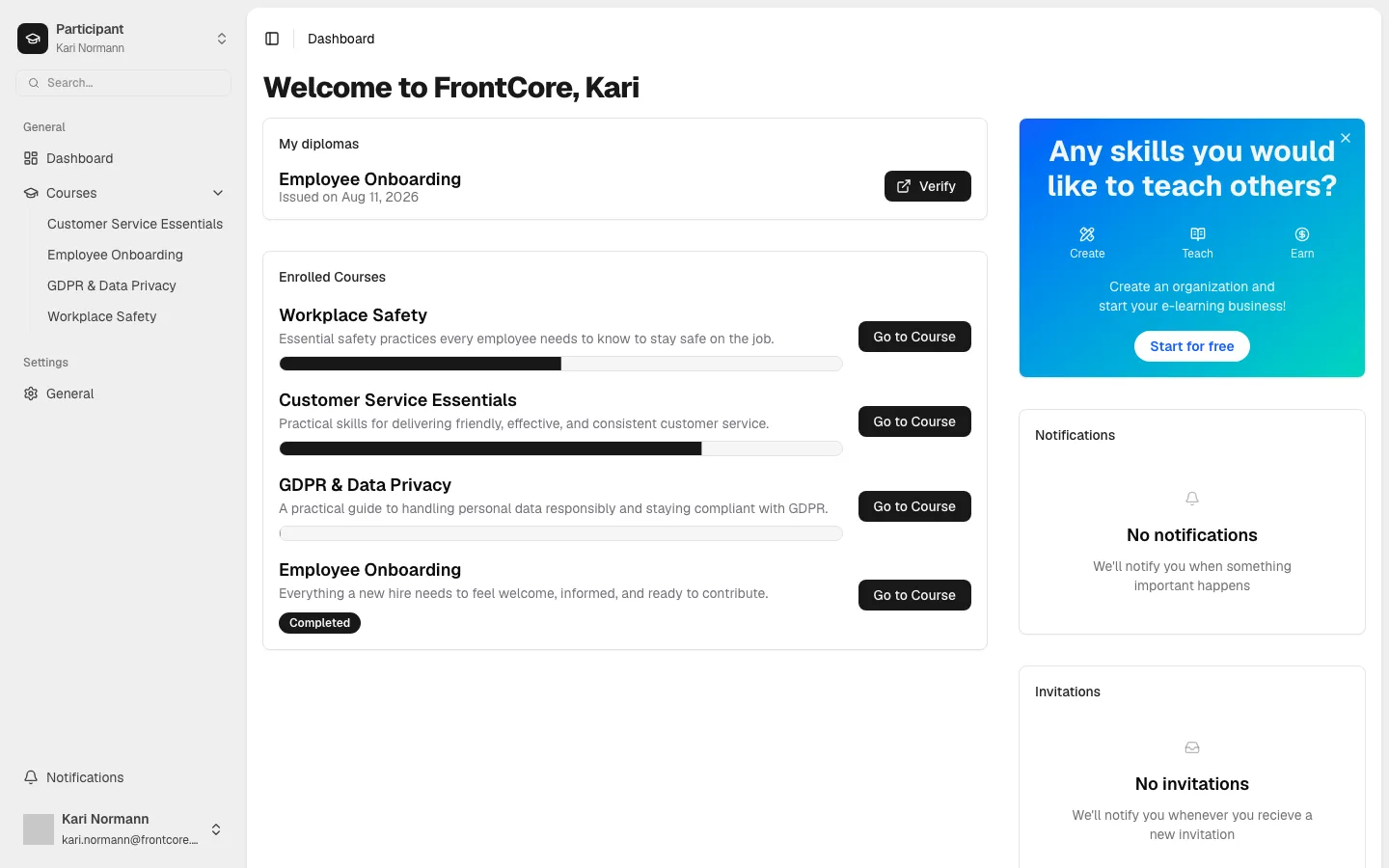
Your dashboard, in the My diplomas card. This card only appears once you have at least one diploma — you won't see it before then.
-
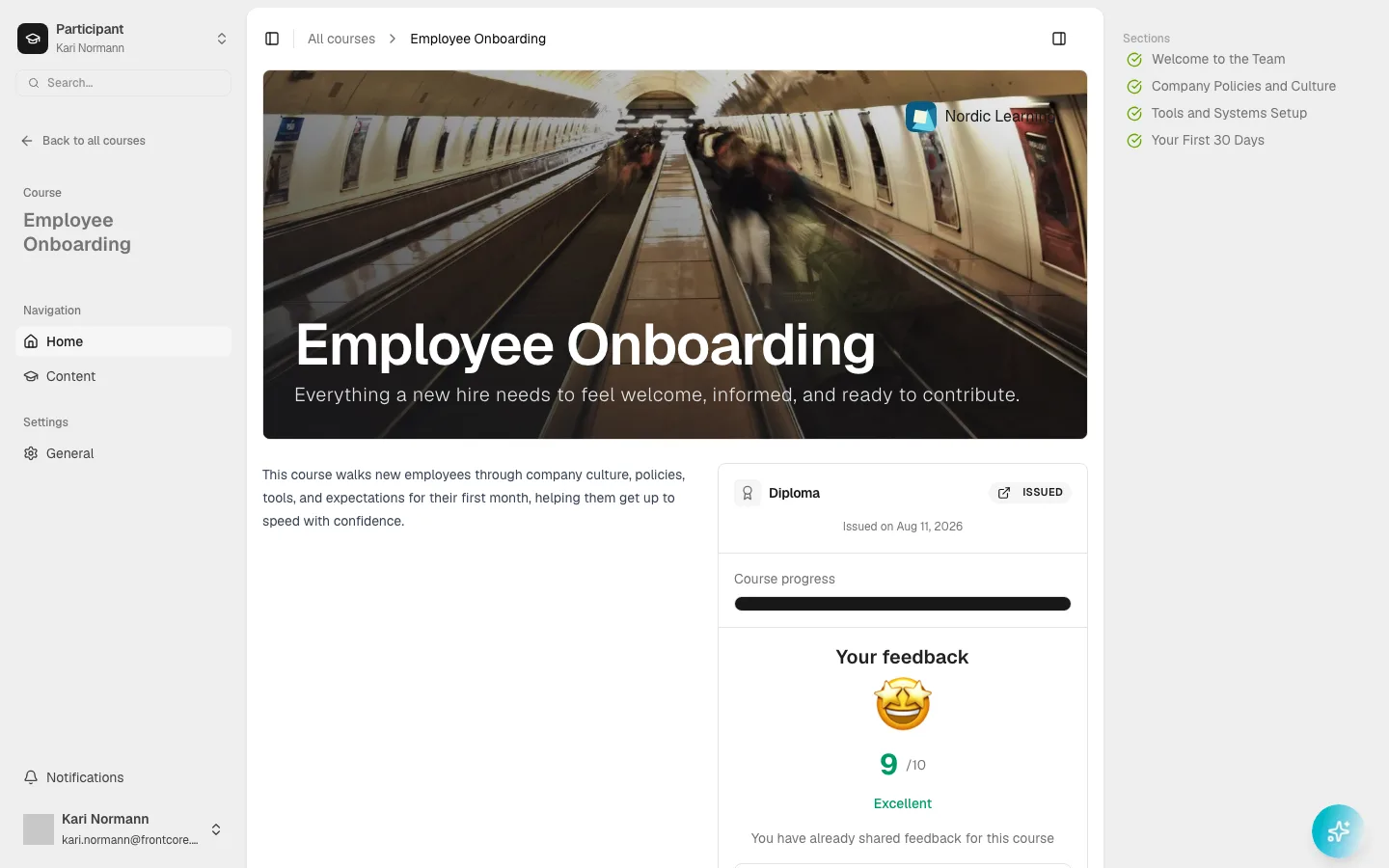
The course's own page, in a Diploma panel in the sidebar. It shows the same diploma for that specific course.
Diplomas aren't on the Certifications page. That page tracks your recertification history — cycles, exam attempts, and renewal status — and has no download button of its own. Use your dashboard or the course page instead.
Download the PDF
On either the dashboard card or the course page panel, click Download PDF once it appears next to your diploma. It opens the PDF in a new browser tab.
That download link is only valid for 1 hour. If it stops working, just come back to the dashboard or course page and click Download PDF again — FrontCore generates a fresh link each time you load the page.
Verify a diploma
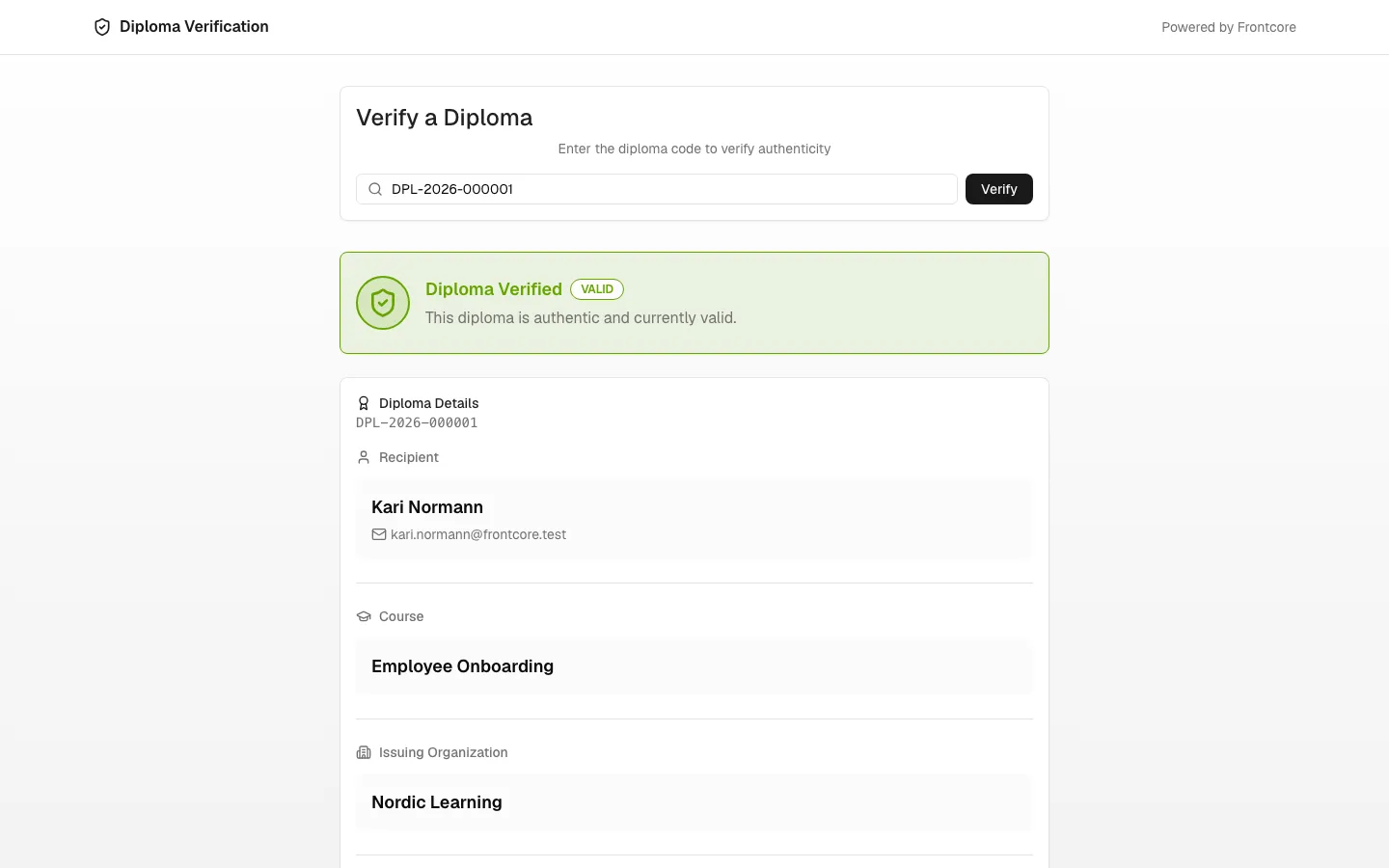
Click Verify (or the Issued badge on the course page panel) to open FrontCore's public verification page for that diploma. It confirms the diploma is authentic and shows the recipient, course, issuing organization, and completion and issue dates — anyone with the link can check it, even without a FrontCore account.
If a diploma is revoked or expired
If your organization revokes a diploma, or it expires because the course requires periodic recertification, the Download PDF button disappears and a Revoked or Expired badge appears instead, along with the reason if one was given. The Verify button still works, so you (or anyone else) can always confirm the diploma's current status.
Next steps
- If your diploma expires and the course supports recertification, see Recertification and renewal for how to renew it.
- See the FAQ for more common questions.