Track your progress across courses
See how far you've gotten in every course you're taking, from a quick dashboard glance down to exactly which sections you've finished.
FrontCore shows your course progress in two places: a quick glance across every course on your dashboard, and a closer look inside the course you're currently taking.
See progress across every course
Your dashboard's Enrolled Courses card lists every course you're enrolled in, each with its own progress bar underneath the course description.
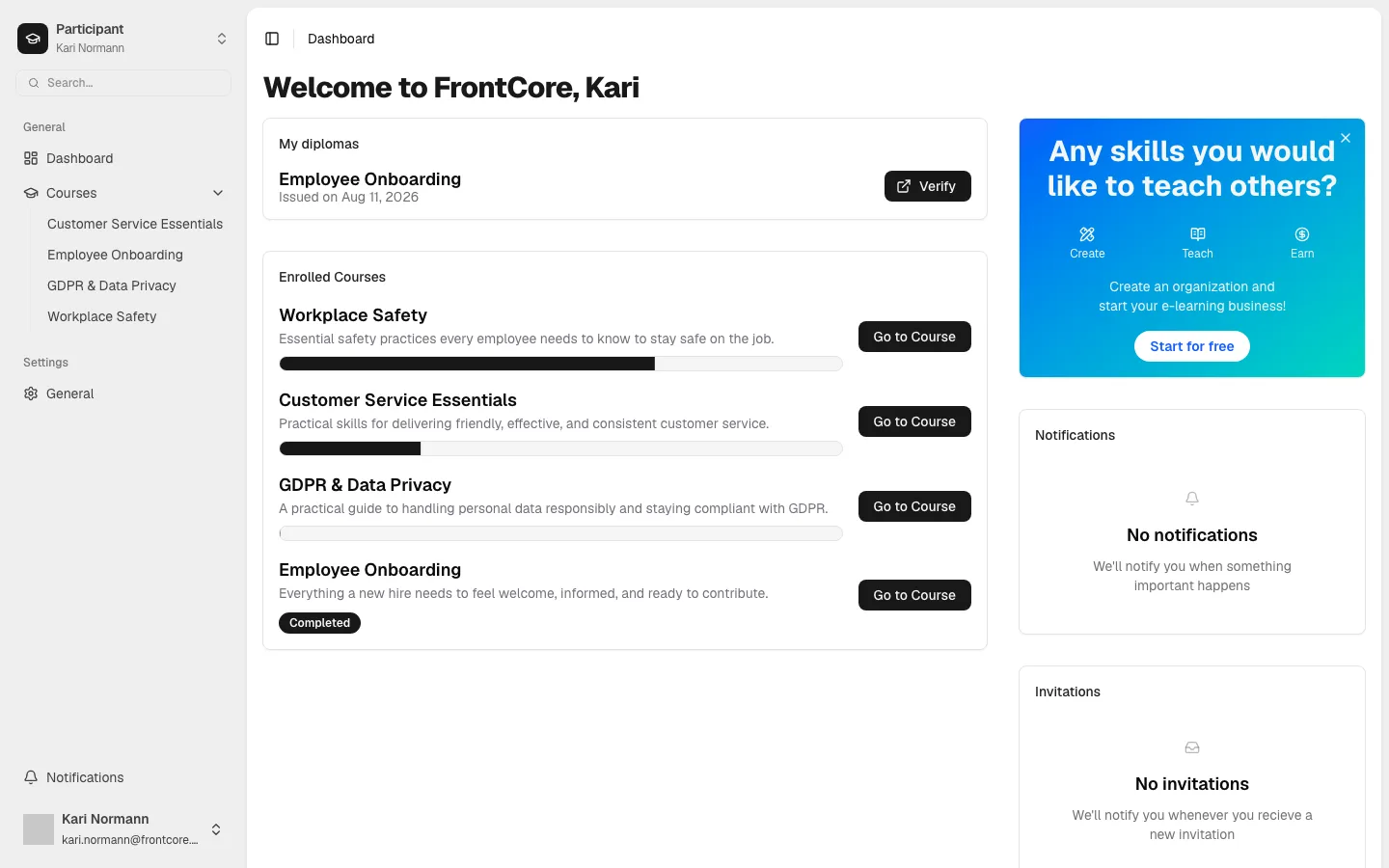
The bar tells you where you stand at a glance:
- Not started — an empty bar, like GDPR & Data Privacy above.
- In progress — a partly filled bar that grows as you complete more of the course, like Workplace Safety and Customer Service Essentials above.
- Finished — once you've completed everything in the course, the bar is replaced by a Completed badge, like Employee Onboarding above.
Click Go to Course on any card to jump straight back into that course.
See progress inside a course
Open a course you're partway through and you'll find the same idea repeated closer up: a Course progress bar sits right above the button that takes you to your next lesson, and a Sections list in the right-hand sidebar shows exactly which sections you've finished.
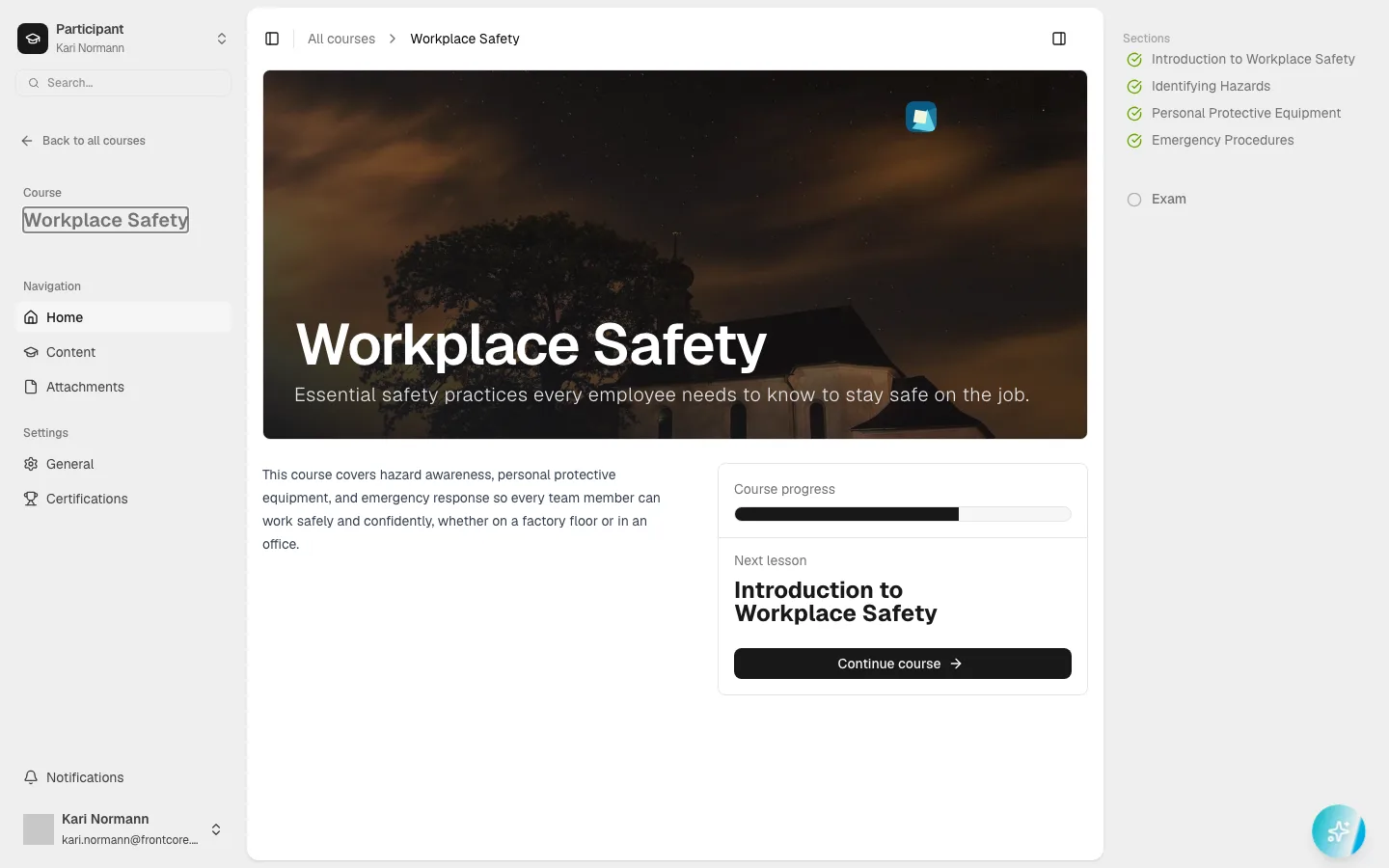
In the Sections list, each entry gets one of three icons:
- A green checkmark for a section you've completed.
- An open circle for a section you haven't finished yet.
- A lock icon for something you can't open yet — like the Exam entry, which stays locked until every section is checked off.
In the example above, Kari has finished all four sections — Introduction to Workplace Safety, Identifying Hazards, Personal Protective Equipment, and Emergency Procedures — so the sidebar shows a green checkmark next to each, and Exam is no longer locked. She hasn't passed it yet, though, which is why the Course progress bar above isn't full.
If a course has an exam, finishing every section alone won't fill the Course progress bar the rest of the way — passing the exam counts too. Courses without an exam fill up from sections alone.
Once you finish everything
When you've completed every section (and passed the exam, if the course has one), the Course progress bar fills all the way and every entry in the Sections list shows a green checkmark. If your organization has set up a diploma for the course, a Diploma panel with an Issued badge also appears right above the progress bar.
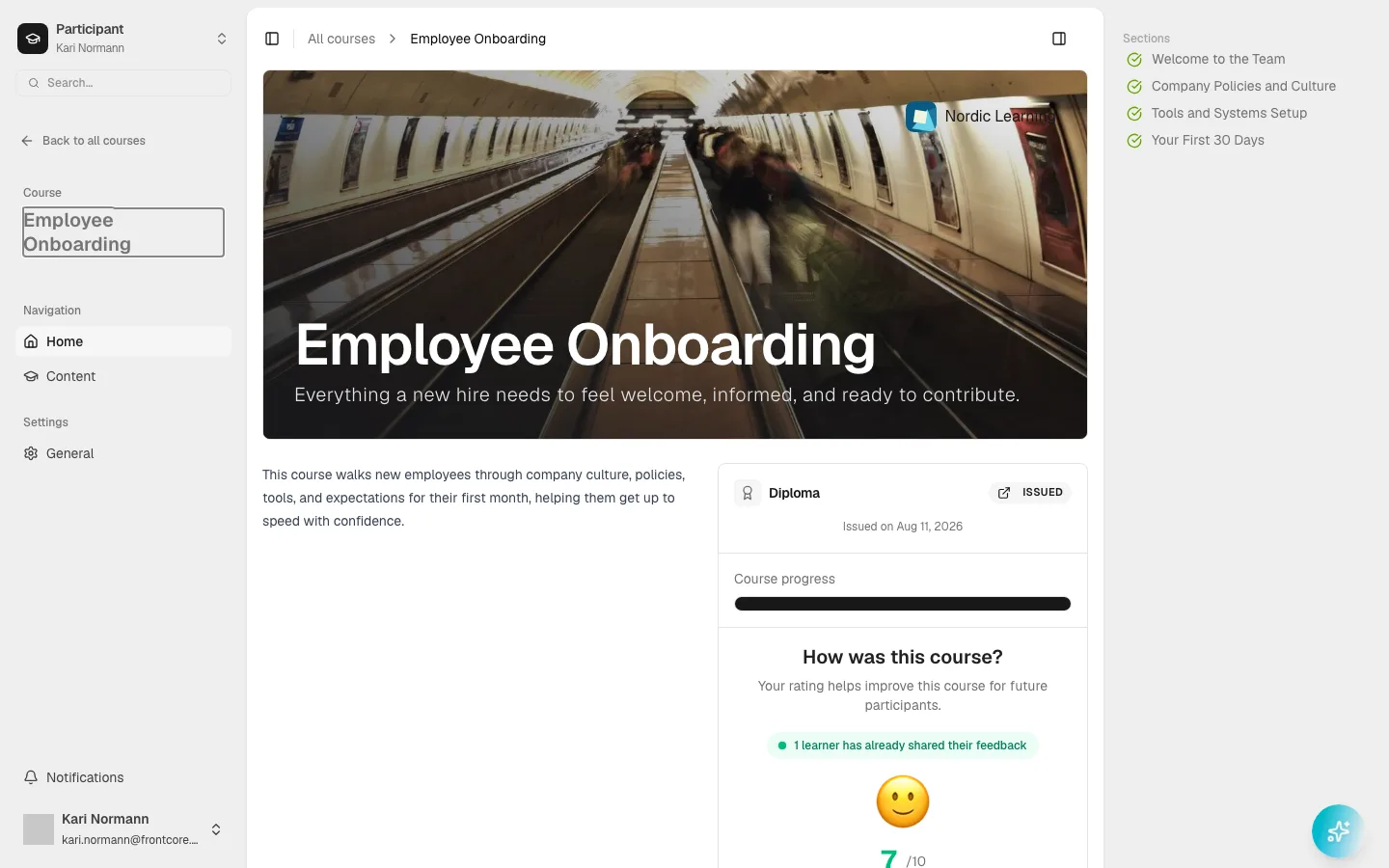
Diplomas are covered in their own article — see Download your diploma after completing a course for where to find and download it.
Next steps
- New to a course's layout? See Course overview and navigation for a tour of the course page and its sidebar.
- Ready for the exam? See Take your course exam.
- If a completed course needs periodic renewal, see Renew your certification when it's about to expire.
- More questions? Check the Learner FAQ.