View and download invoices
Review your organization's invoice history, open a single invoice, and download, forward, or bulk-export PDFs.
Every invoice raised against your organization's subscription — whether charged automatically by card or issued for bank transfer — is listed on the Invoices page, where you can review it, download a PDF, forward it by email, or export several at once.
Viewing invoices is admin-only — see Manage members if you need access.
Invoices only exist for organizations with a paid plan. On the free plan, the Invoices tab is hidden from the sidebar and the tab row, and opening the page directly redirects you to Plans instead. See Choose a plan and subscribe to start a paid plan first.
Open Invoices
In the sidebar, open Subscription, then Invoices.
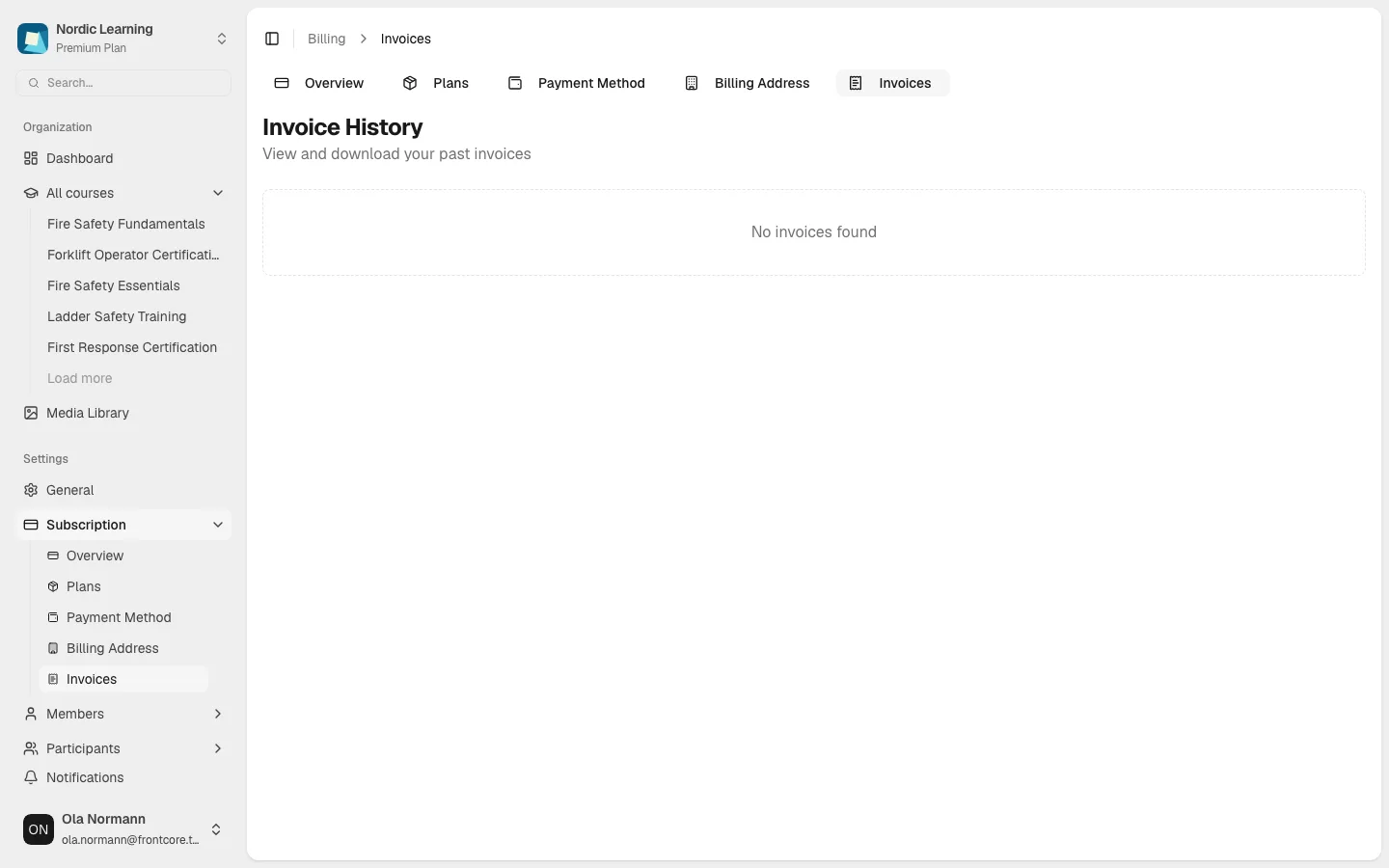
The page is headed Invoice History, subtitled "View and download your past invoices". This particular organization has no invoices yet, so it shows the empty state above — if your organization has billing history, a table replaces it (see below).
Reading the invoice table
When invoices exist, up to 50 are loaded, with each row showing:
- A selection checkbox (the header checkbox selects every row on the current page).
- Date — the invoice date, formatted like "Aug 11, 2026" in your locale.
- Invoice # — the invoice's number, or the first 12 characters of its internal ID if it has no number yet.
- Amount — formatted in the invoice's own currency.
- Status — a colored badge (below).
- Payment Method — Credit Card for invoices paid automatically via Stripe, or Bank Transfer for invoices paid — or awaiting payment — by bank transfer through Maxio.
- A row of action icons on the right: View Details, Download PDF, and Forward via Email.
The table sorts by date, newest first, and only paginates once your organization has more than 10 invoices.
Status badges
- Paid (green) — the invoice has been paid.
- Awaiting Invoice (amber) — a bank-transfer invoice that hasn't been issued by Maxio yet; nothing is downloadable until it is.
- Pending Bank Transfer (blue) — a bank-transfer invoice that has been issued and is waiting to be paid.
- Failed - Retrying (orange) — an open card charge that has already failed once and has another retry scheduled.
- Overdue (red) / Due Today (amber) — an open invoice past, or due on, its due date.
- Open (yellow) — an open invoice with no due-date issue yet.
- Voided, Draft, and Failed — the invoice's Stripe status shown directly.
View invoice details
This section is sourced from the application's code, not a screenshot — the capture organization above had no invoice to open. Labels are quoted exactly as they appear in the code.
Clicking a row's View Details icon opens an Invoice Details dialog headed Invoice #<number>, showing Date, Due Date, Amount, Status, Payment Method, and — once the invoice has been paid — Paid At. A full-width Download PDF button sits at the bottom.
Download a PDF
Both the row's Download PDF icon and the Download PDF button inside the details dialog do the same thing: they resolve a signed download link for that specific invoice (from Stripe, or from Maxio for a bank-transfer invoice) and open it directly in a new browser tab.
If an invoice's status is Awaiting Invoice, all three row actions are disabled with the tooltip "Invoice not yet available" — Maxio hasn't issued the invoice yet. Check back later.
Select multiple invoices
Selecting one or more rows' checkboxes raises a floating action bar showing how many rows are selected, with three actions:
- Download ZIP — downloads up to 50 selected invoices at once as a single
.zipfile (each entry namedinvoice-<id>.pdf); a toast confirms how many invoices were downloaded when it finishes. - Forward — opens a Forward Invoice dialog to email up to 20 selected invoices as PDF attachments. It asks for a Recipient Email (required) and an optional Message, previews the first 5 invoices to be sent plus a count of any remaining ones, and sends with a Send button. The row-level Forward via Email icon opens the same dialog for a single invoice.
- Clear selection — clears the checkboxes.
Open the full invoice preview page
This section is also sourced from code rather than a screenshot, for the same reason as above.
Clicking through to a specific invoice from elsewhere in Billing — for example a recent invoice listed on the Overview page — opens it as an Invoice Preview dialog on top of the page you were on, with an embedded PDF and a Download button in its header, rather than replacing the whole page.
Opening the same invoice directly instead — from a bookmark, a shared link, or a full page reload — shows the identical content full-page, with a Back to Billing link and a Download PDF button.
If the invoice can't be loaded, both the dialog and the full page show "Unable to load invoice preview" in place of the PDF.