Choose a plan and subscribe
Compare your organization's plan options on the Plans page and start a paid subscription.
Every organization starts on the free plan. When you need more participants or want features the free plan doesn't include, an admin can compare the paid plans and start a subscription from the organization's Plans page.
Changing or starting a subscription is admin-only. If you're not an org Admin, opening any billing page shows an Invalid Permissions screen instead — see Manage members to request access.
Compare plans
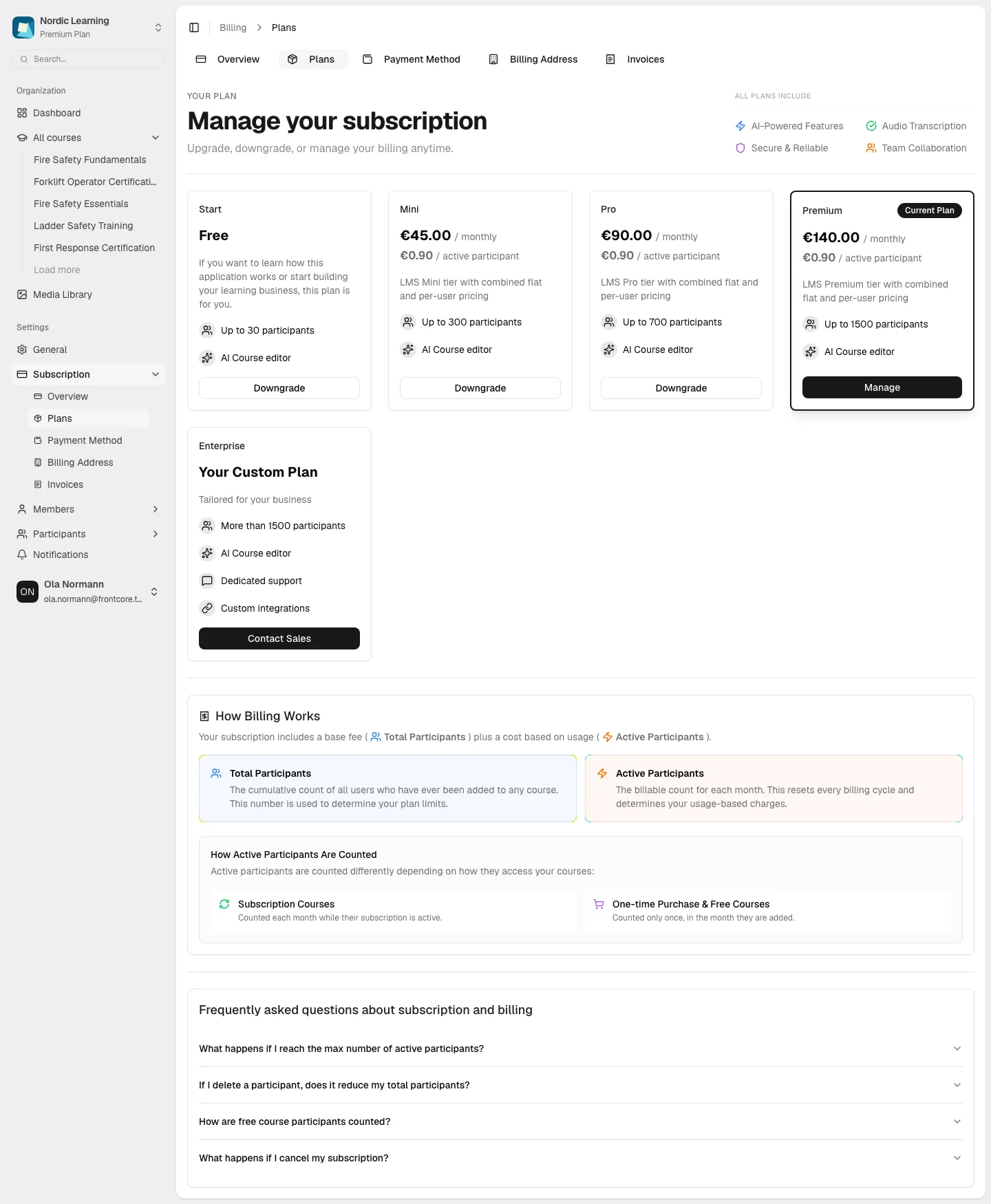
- In the sidebar, open Subscription, then Plans. The same Overview / Plans / Payment Method / Billing Address / Invoices row repeats as tabs at the top of every billing page — organizations still on the free plan only see Overview and Plans here, since the other billing pages don't apply to them yet.
-
If your organization has no active subscription yet, a currency selector appears above the plan cards (it disappears once you've subscribed, since your billing currency is then fixed). Each plan card shows:
- The plan name and, for paid plans, a price split into a flat monthly base fee plus a per-active participant usage fee.
- A short description and a list of marketing features for that plan.
- The free plan is always shown first, priced Free; a custom-priced plan for large organizations is always shown last, with a Contact Sales button — these two cards are fixed in the app itself, while the plans in between come from FrontCore's shared plan catalog, the same set of paid tiers shown to every organization.
- Your organization's current plan carries a Current Plan badge and a highlighted border.
-
A card headed All Plans Include on the right lists what every plan gets regardless of tier: AI-Powered Features, Audio Transcription, Secure & Reliable, and Team Collaboration. Hover any of these for a one-line explanation.
-
Below the plan cards, a How Billing Works panel explains the two participant counters your subscription is billed against:
- Total Participants — "The cumulative count of all users who have ever been added to any course. This number is used to determine your plan limits."
- Active Participants — "The billable count for each month. This resets every billing cycle and determines your usage-based charges."
It also explains how active participants are counted: Subscription Courses are "Counted each month while their subscription is active," while One-time Purchase & Free Courses are "Counted only once, in the month they are added."
-
A short FAQ accordion follows, covering questions like What happens if I reach the max number of active participants?, If I delete a participant, does it reduce my total participants?, How are free course participants counted?, and What happens if I cancel my subscription?
Each plan card's button label depends on your organization's current plan: Start free trial if you have no active subscription yet; Upgrade or Downgrade for a plan ranked above or below your current one; Choose plan otherwise; and Manage on your current plan's own card, which opens the Stripe customer portal in a new browser tab rather than the in-app wizard below.
Start a subscription
Click a plan's button to continue. If your organization has no active subscription, every paid plan's button reads Start free trial, and it takes you to a Subscribe page headed Subscribe to {plan}. (An Upgrade or Downgrade button on an organization that already has a subscription opens the same wizard in a different mode — see Upgrade or downgrade your plan.)
The wizard is a two-column layout: your payment details on the left, and an Order Summary panel on the right.
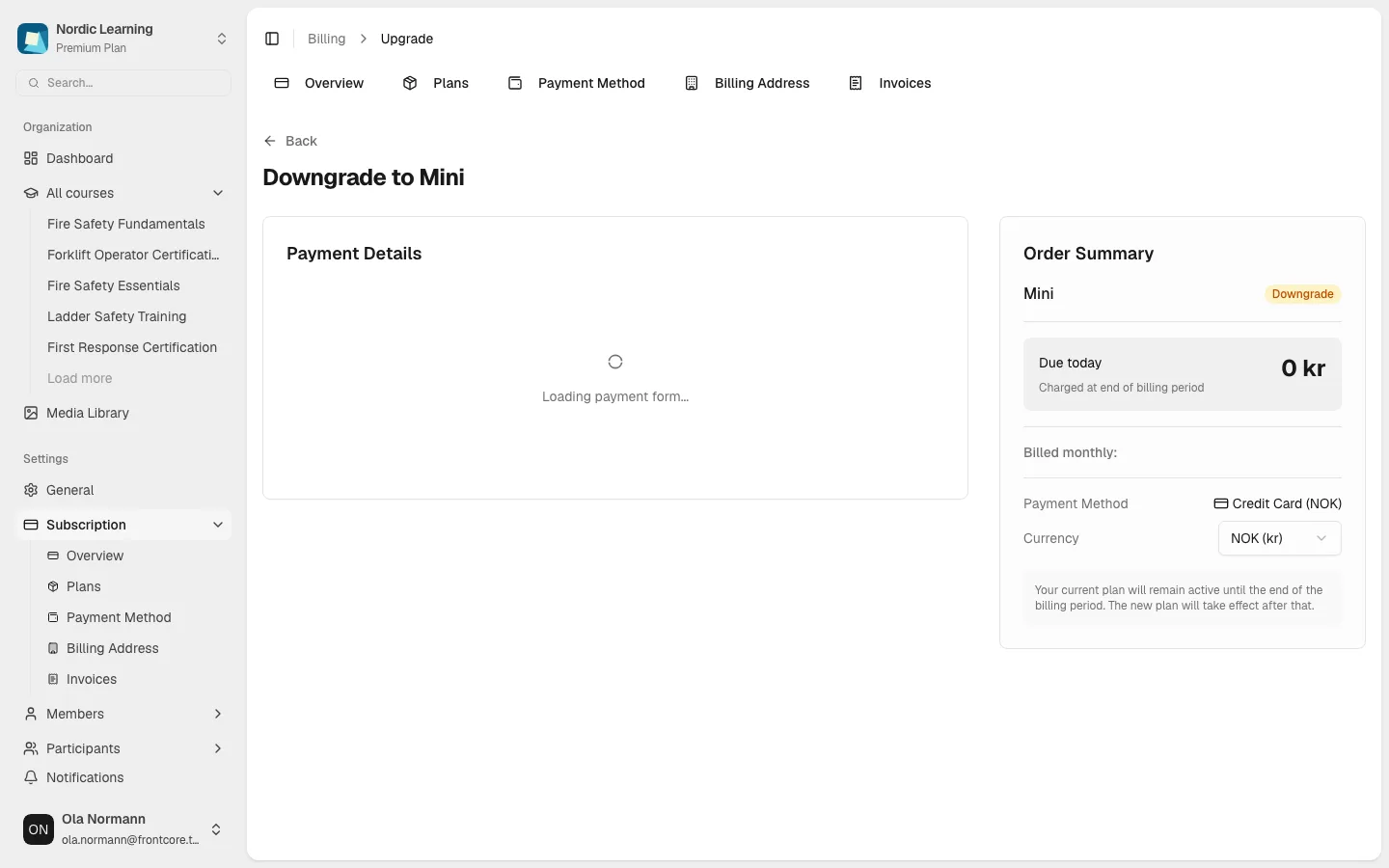
This screenshot was captured on an organization that already has an active plan, so it shows the wizard's Downgrade mode rather than a true first-time subscribe — the Order Summary layout is otherwise identical. On a genuine first subscription: the badge next to the plan name reads New instead of Downgrade; Due today shows 0 with the caption 14-day free trial instead of Charged at end of billing period; and the monthly breakdown is headed After trial billed monthly instead of Billed monthly. In this particular capture, the Payment Details panel hadn't finished loading — it still shows a spinner and "Loading payment form…" rather than the real card form described below, and the Base price / Per active user rows under Billed monthly are blank for the same reason.
The Order Summary lists your plan with a mode badge, a prominent Due today amount, a recurring monthly breakdown (Base price and Per active user), your Payment Method, and — for card payments — a Currency selector (NOK, EUR, USD, SEK, or DKK).
On the left, what you see depends on whether your organization has bank transfer invoicing enabled:
- If bank transfer isn't enabled for your organization, you go straight to a Payment Details panel with an embedded Stripe card form. Submitting reads Subscribe, with a footnote: "By subscribing, you authorize FrontCore to charge you according to the terms until you cancel."
- If your organization has bank transfer enabled, a Payment Method step appears first, asking "How would you like to pay?" with two options: Credit Card ("Automatic payment collection via credit/debit card. Fast and secure.") and Bank Transfer (Invoice) ("Receive invoices and pay via bank transfer. Best for businesses that require invoices."). Choosing Bank Transfer reveals an Invoice Currency selector and a Billing Information form (company name, address, and contact details) — required before you can continue. Bank transfer subscriptions activate immediately and are invoiced rather than charged automatically; the submit button reads Start Subscription.
A new subscription includes a 14-day free trial — you aren't charged today either way. Changing plans later (see Upgrade or downgrade your plan) doesn't get a new trial.
After you subscribe
On success, the wizard briefly shows a full-screen Subscription Created confirmation. Completing checkout with a new card, or by bank transfer, then redirects you back to the Plans page, where a confetti dialog confirms the change:
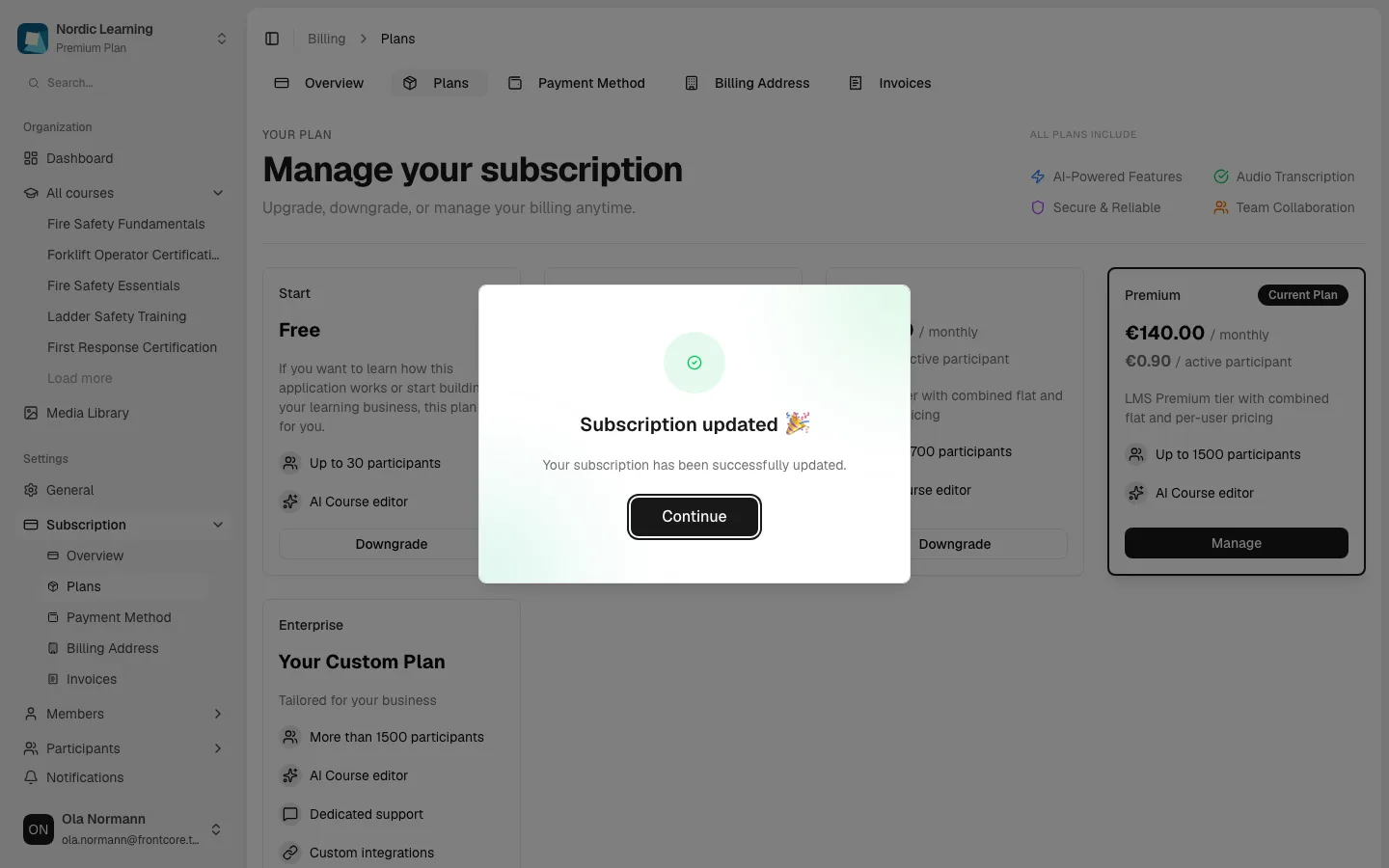
The dialog reads Subscription updated / "Your subscription has been successfully updated." — dismiss it with Continue. Behind the scenes, the Plans page keeps re-checking your organization's plan for a few seconds until it reflects the change, so if a plan card still shows your old plan for a moment after dismissing the dialog, refreshing resolves it.
If checkout fails instead, you land back on Plans with a Subscription was not updated alert rather than the confetti dialog.