Browse the organization file library
Open your organization's file library, browse by file kind, search and filter, and open a file to see its details and usages.
Your organization's images, videos, audio, documents, and archives all live in one place: the file library. It opens as a panel over whatever page you're on, rather than a page of its own, so you can browse and pick files without losing your place.
Open the file library
-
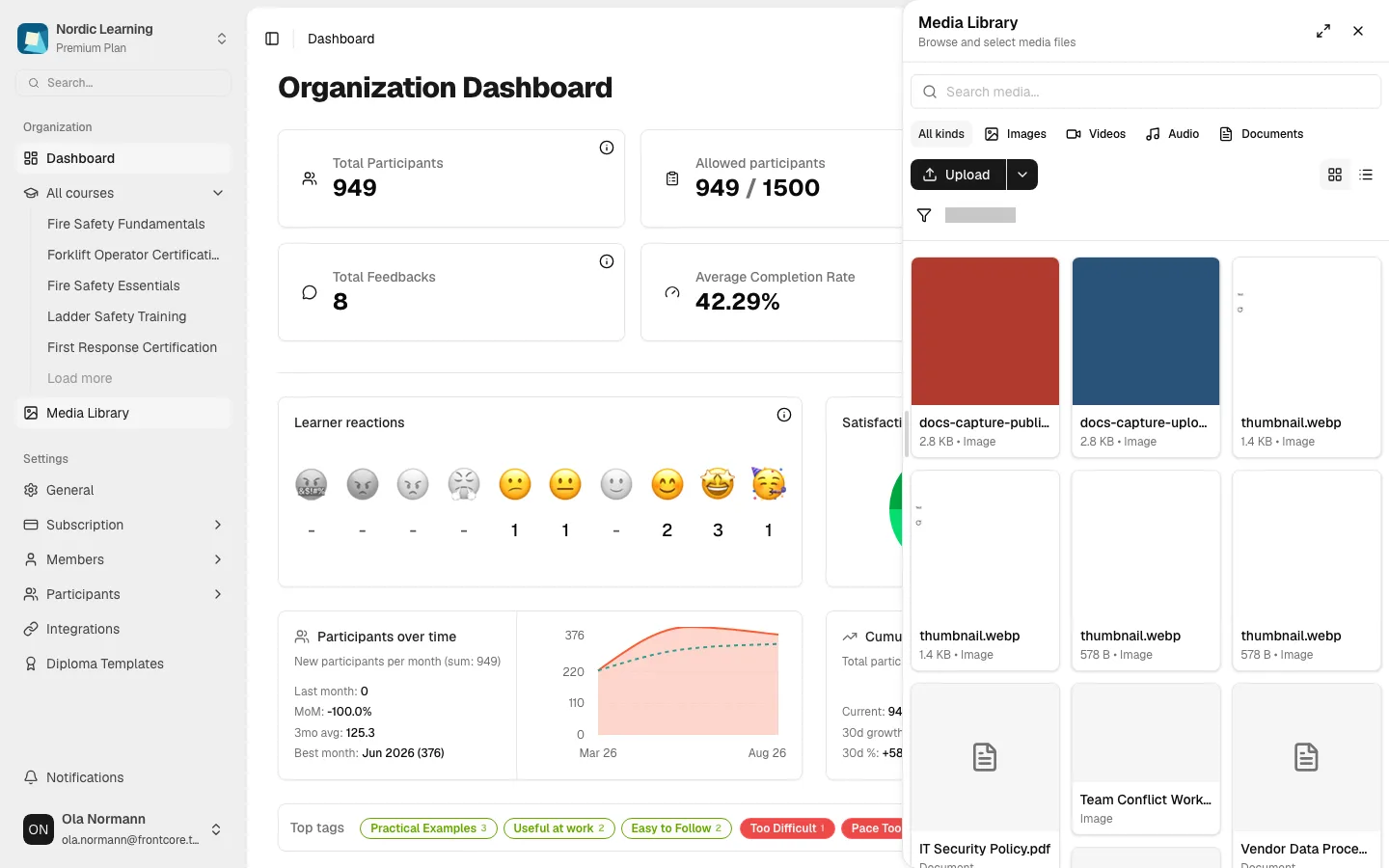
In the organization sidebar, click Media Library.
-
The panel opens on the right, titled Media Library with the subtitle "Browse and select media files".
The same Media Library item also appears in a course's sidebar, and as an icon button inside the section editor's action bar — all three open the same panel.
You can also open it with ⌘M (Ctrl+M on Windows/Linux) from anywhere in the app, or through the command search (⌘K) — look for Open Media Library under the "Media Library" group, alongside shortcuts that jump straight into a filtered view, like Browse Images or Browse Videos.
Learners don't have a file library of their own — the sidebar item, course sidebar item, and section-editor button are all organization-member surfaces.
Browse by file kind
Above the file grid, a row of quick filters narrows the list to one kind at a time: All kinds, Images, Videos, Audio, Documents. Click a kind to filter to it; click the same one again to clear the filter.
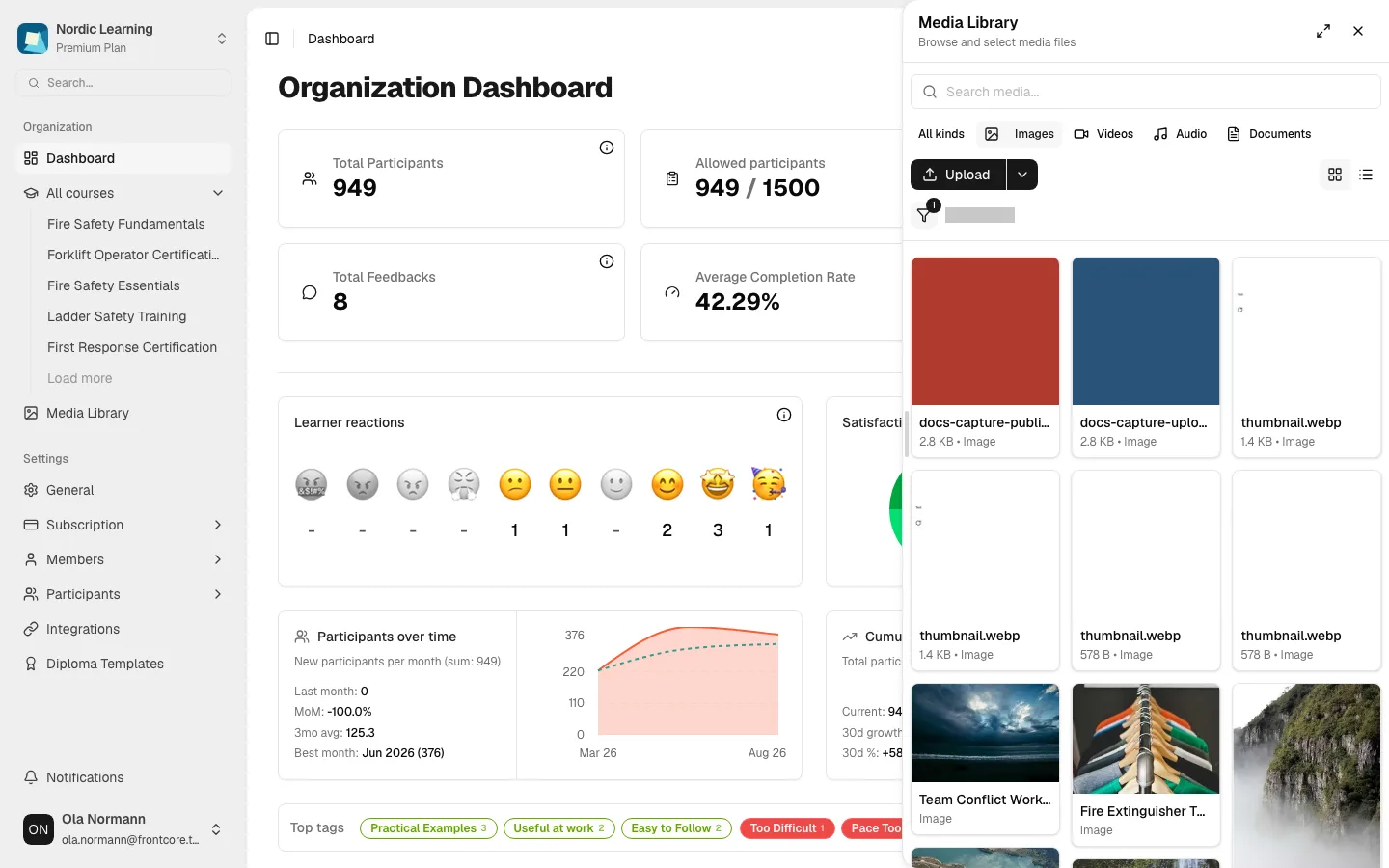
Archives and Other files aren't in this quick row — reach them through the Filters menu's File Type option instead (see below).
Files can also be organized into folders. A folder card shows its name and how many items it holds — "Empty folder" or "N items" — and clicking it opens that folder with a breadcrumb trail back to the root. To create one, click the small arrow next to Upload and choose New folder.
Search and filter
Type into the search box (placeholder "Search media...") to search by file name. Searching a kind word like "image" or "video" also matches every file of that kind, not just names containing the word.
For more control, click the funnel-shaped Filters button — a badge on it shows how many filters are active. The menu offers:
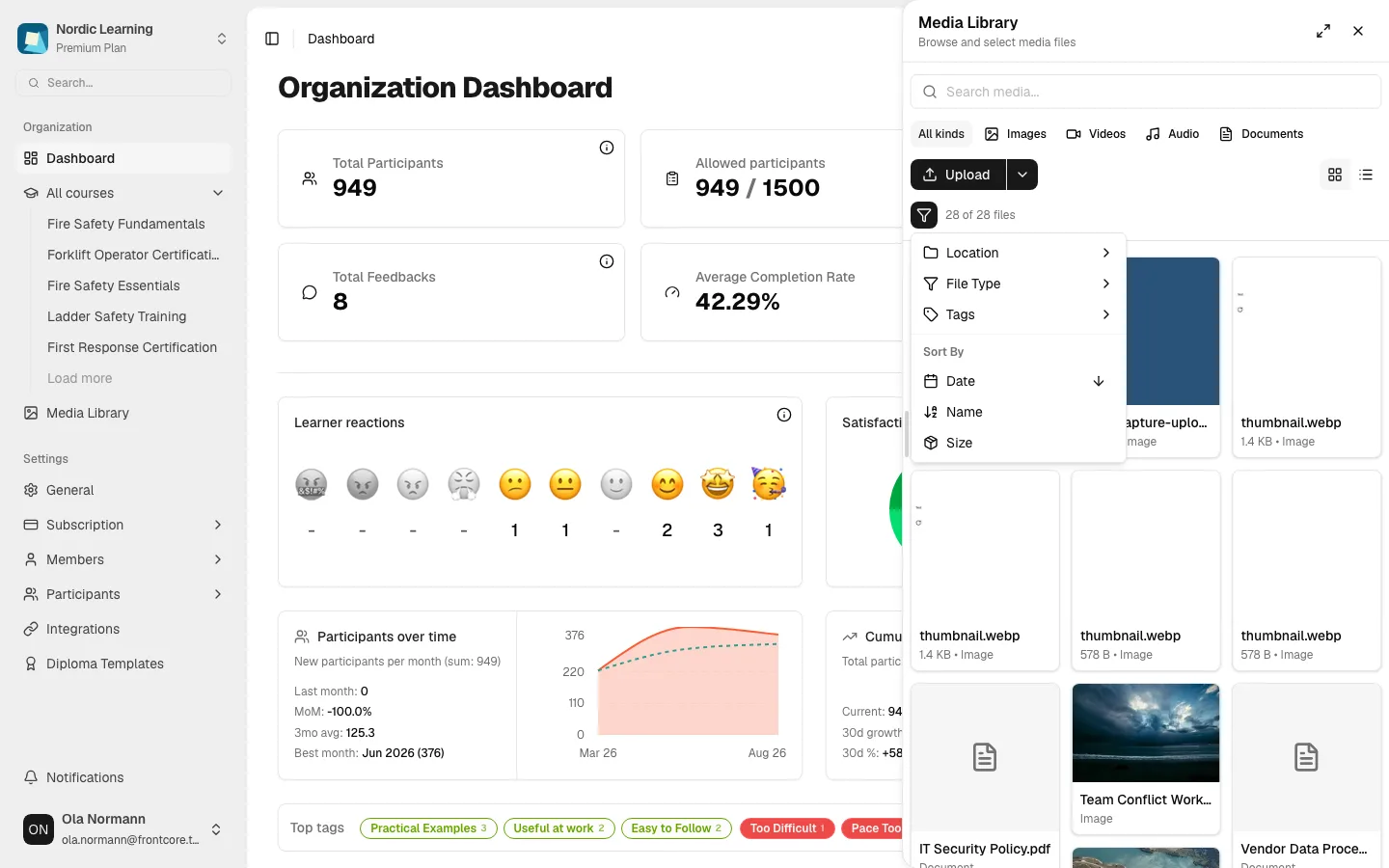
- Location — narrow to all files, or to a specific course and its sections.
- File Type — every file kind, including Archives and Other.
- Tags — filter by one or more tags your organization has created.
- Sort By — Date, Name, or Size. Click a sort option to sort ascending, click it again for descending, and a third click returns to the default (newest first).
A Clear all filters option appears once any filter is active. Use the grid/list icons in the top-right corner of the panel to switch between a grid of thumbnails and a compact list view.
Opening the file library from inside a course or a section pre-scopes the list to that course or section, and shows a clickable breadcrumb (All files › course › section) so you can widen the view back out again.
Open a file to see details and usages
Click any file card to open its File Details panel: a preview, the file name, and a row of actions — Open, Copy URL, Download, and, for images, Crop Image — plus a metadata grid (Type, Size, Format, Created, and more depending on the file).
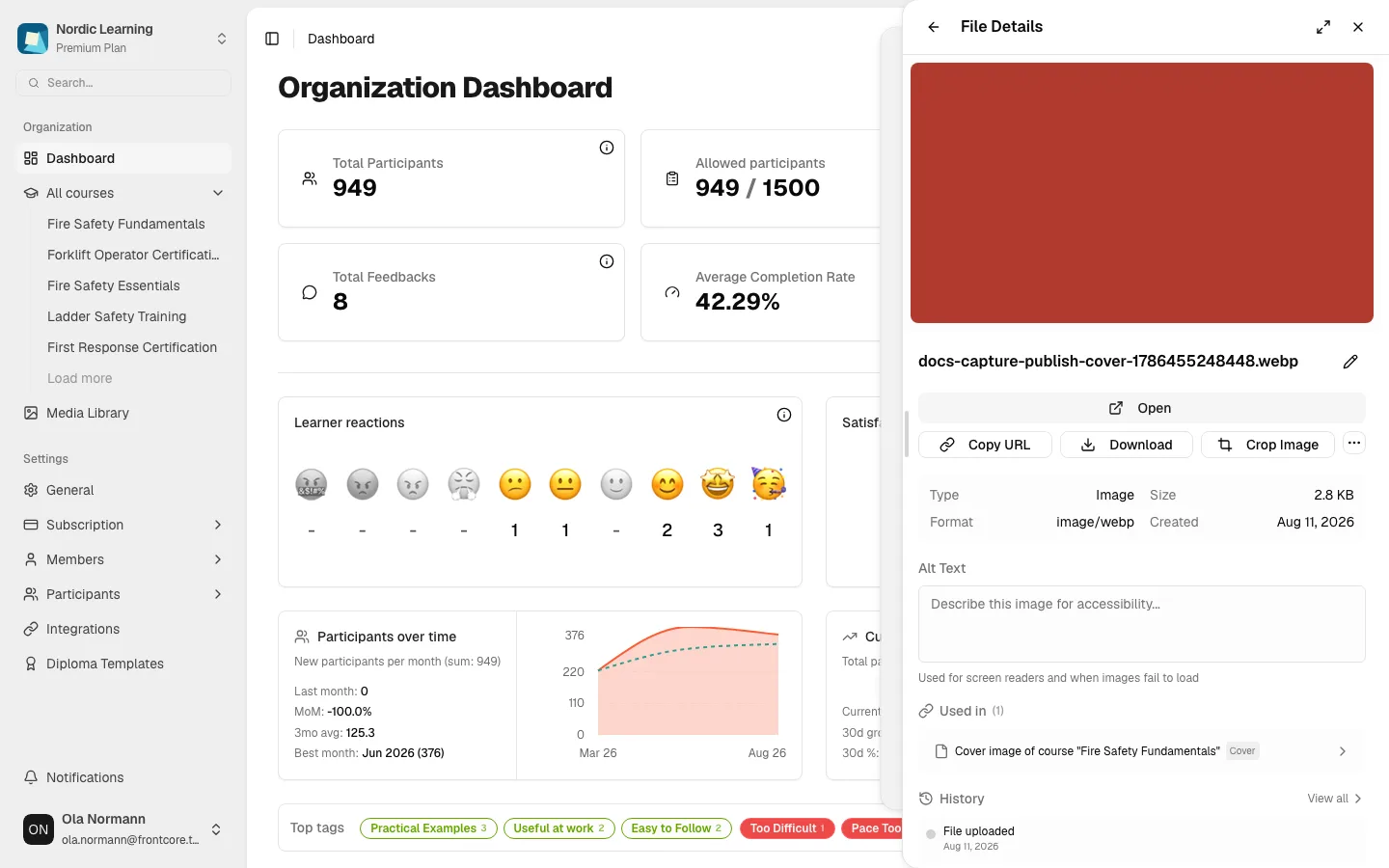
Further down, two sections matter most when you're trying to understand a file:
- Used in lists every place the file is used — course covers, section content, inline attachments, and more — or reads "This file is not used anywhere yet." if it's unused.
- History shows the file's most recent events (upload, rename, and so on), with a View all link for the full timeline.
Check Used in before deleting a file — the file library blocks deletion while a file is still in use anywhere, and points you to each location so you can remove it there first.
Next steps
See the FAQ for other common questions.