Sign in with a magic link
Sign in to FrontCore LMS with Google, an emailed magic link, or an 8-digit one-time code — no password needed.
FrontCore LMS doesn't use passwords. You sign in with your Google account, or with a magic link and one-time code sent to your email address.
Open the sign-in page
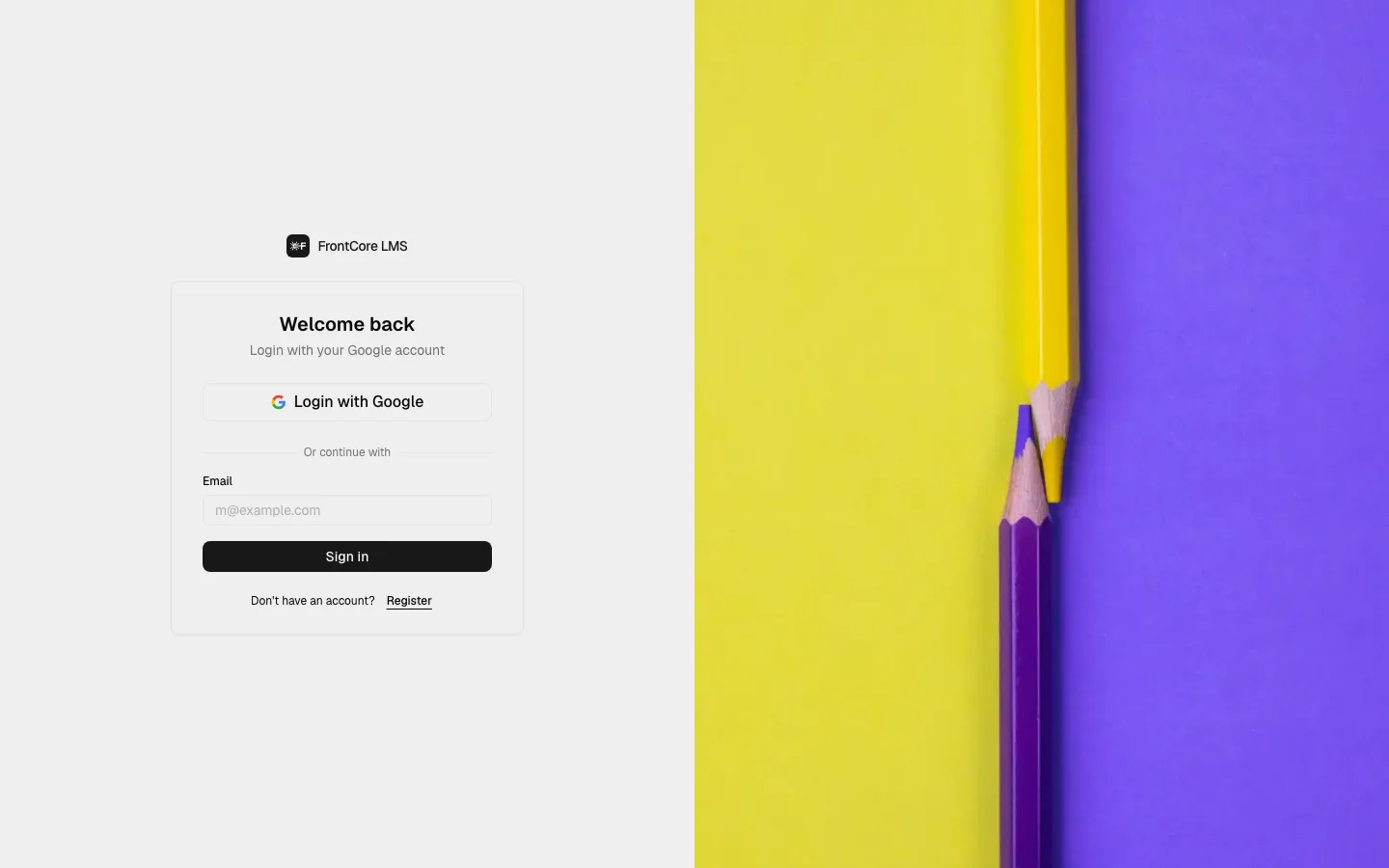
The sign-in page's heading reads Welcome back, with the sub-line "Login with your Google account".
Choose how to sign in
To sign in with Google — click Login with Google at the top of the card and choose your Google account when prompted.
To sign in with your email — below the "Or continue with" divider, type your address into the Email field and click Sign in.
If you don't have an account yet, the same form creates one. Click Register below the form to switch it to sign-up mode (the submit button then reads Sign up) — it's the identical Google button and email flow, and your account is created automatically the first time you verify your address.
Check your email
FrontCore emails you a message titled "Sign in to FrontCore LMS". It contains a "Click here to log in" button and, below it, the same code as text so you can type it in instead.
Clicking the button first opens a short confirmation screen before it signs you in — this extra step protects the link from being consumed by mail-security scanners before you open it.
Or enter the one-time code
Instead of clicking the link, you can go back to the browser tab and finish signing in there. The verify page reads "Verify your email to continue" and shows the address the email was sent to, plus a boxed input for the code split into two groups of four digits.
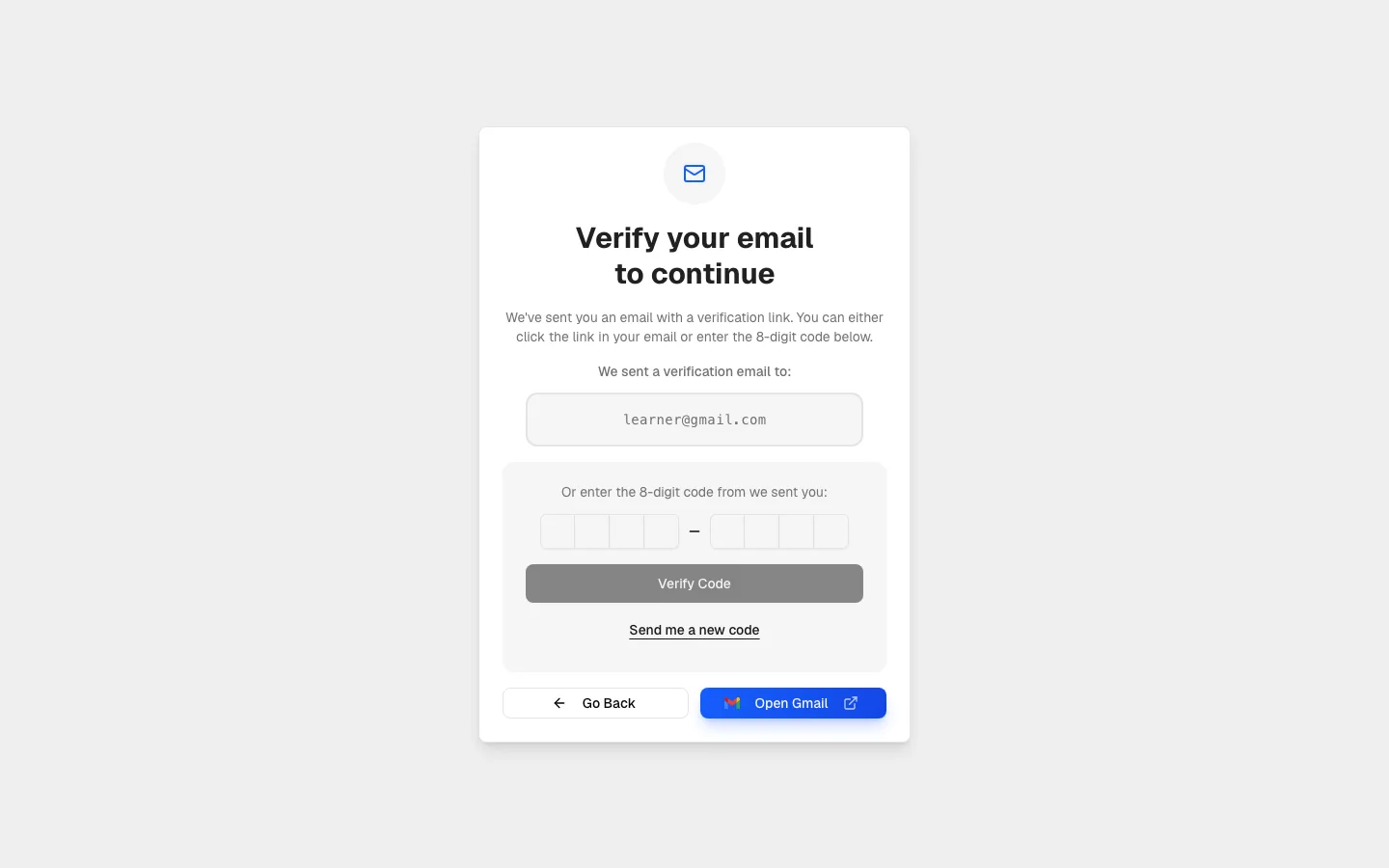
Fill in all 8 digits from the email and click Verify Code; the button stays disabled until every digit is entered.
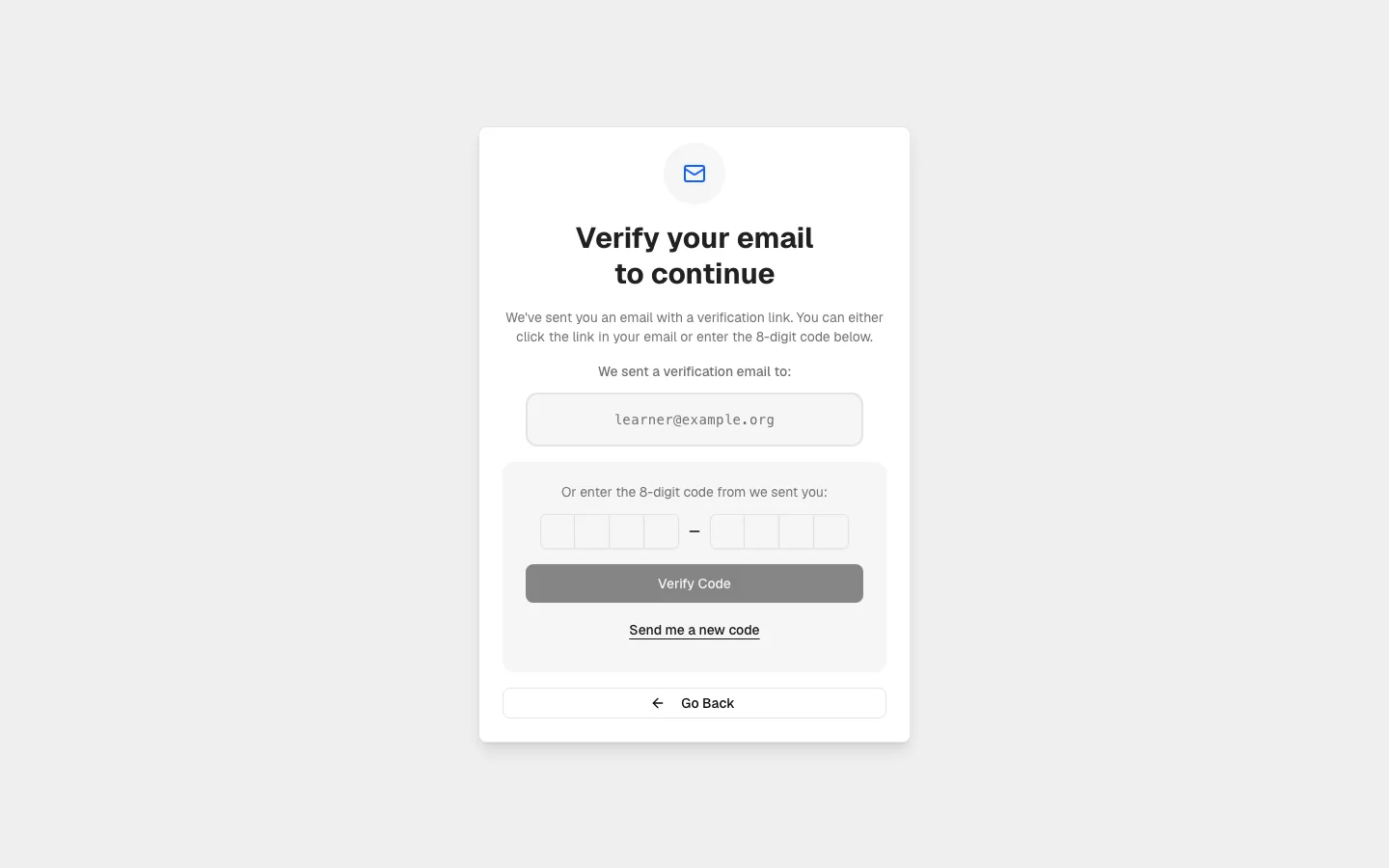
If your email address is on a recognized provider — Gmail, Outlook, Yahoo Mail, iCloud Mail, ProtonMail, or AOL Mail — the page also shows an Open [Provider] shortcut that opens your inbox in a new tab. For any other address, that button is simply not there:
If you didn't get the code
Click Send me a new code underneath the code entry to have FrontCore send a fresh one. The button shows Sending... while it works, then either a confirmation ("A new code has been sent. Check your email.") or, if you've requested too many in a row, a message asking you to try again later.
The link and the code from the same email are the same underlying secret — using one uses up the other too, so if the link says it's already been used, request a new code instead of retrying the old email.
Next steps
- If you have an existing magic-link account under the same email address as your Google account, signing in with Google links the two accounts automatically instead of creating a duplicate.
- See the FAQ for other common questions about signing in.